A recipient, also known as a contact or subscriber, is a constituent assigned to one or more of your email lists. Note that anyone subscribed to your email lists is a constituent in your database and counts towards your total number of constituents.
You can add email recipients a number of ways including:
1. Manually assigning a single or group of constituents to an email list.
2. Importing new constituents and assigning them to an email list.
3. Manually adding a new recipient one at a time.
4. Inviting people to subscribe to your email lists via a link or widget.
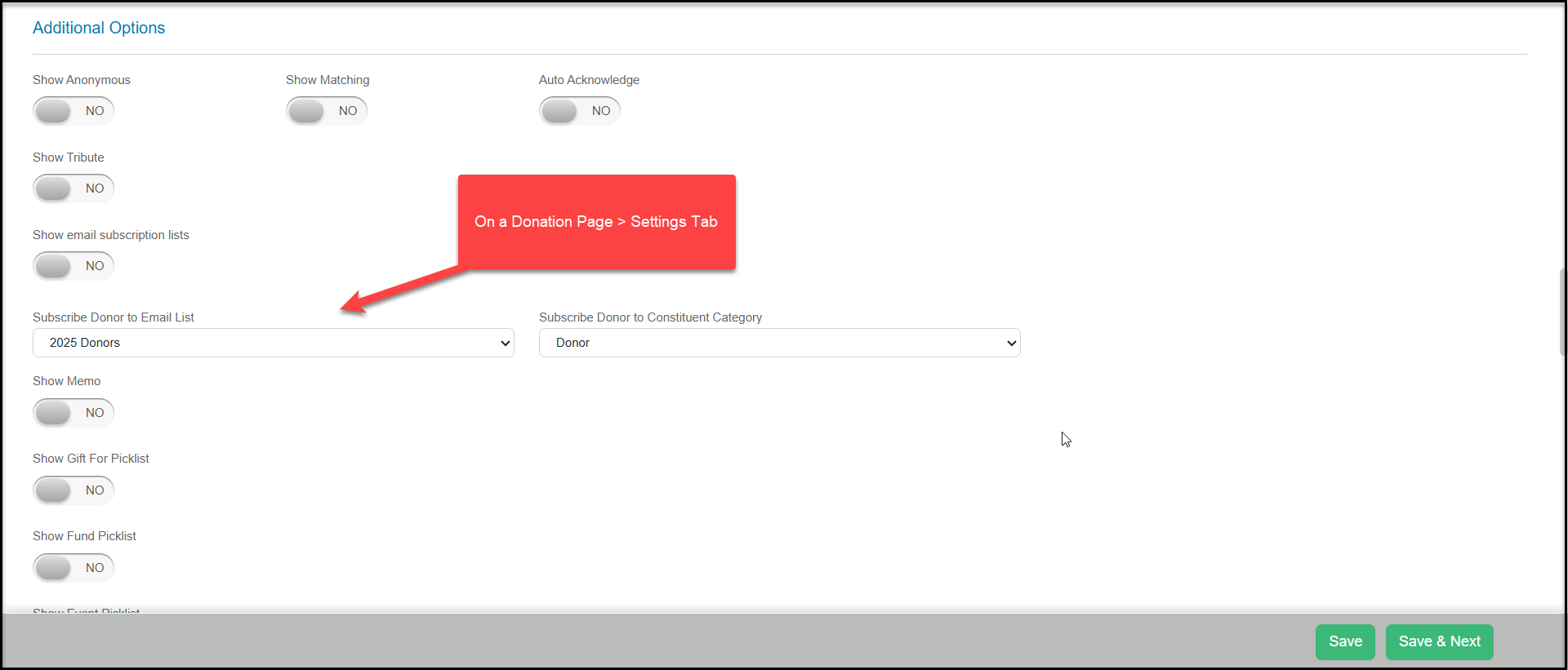
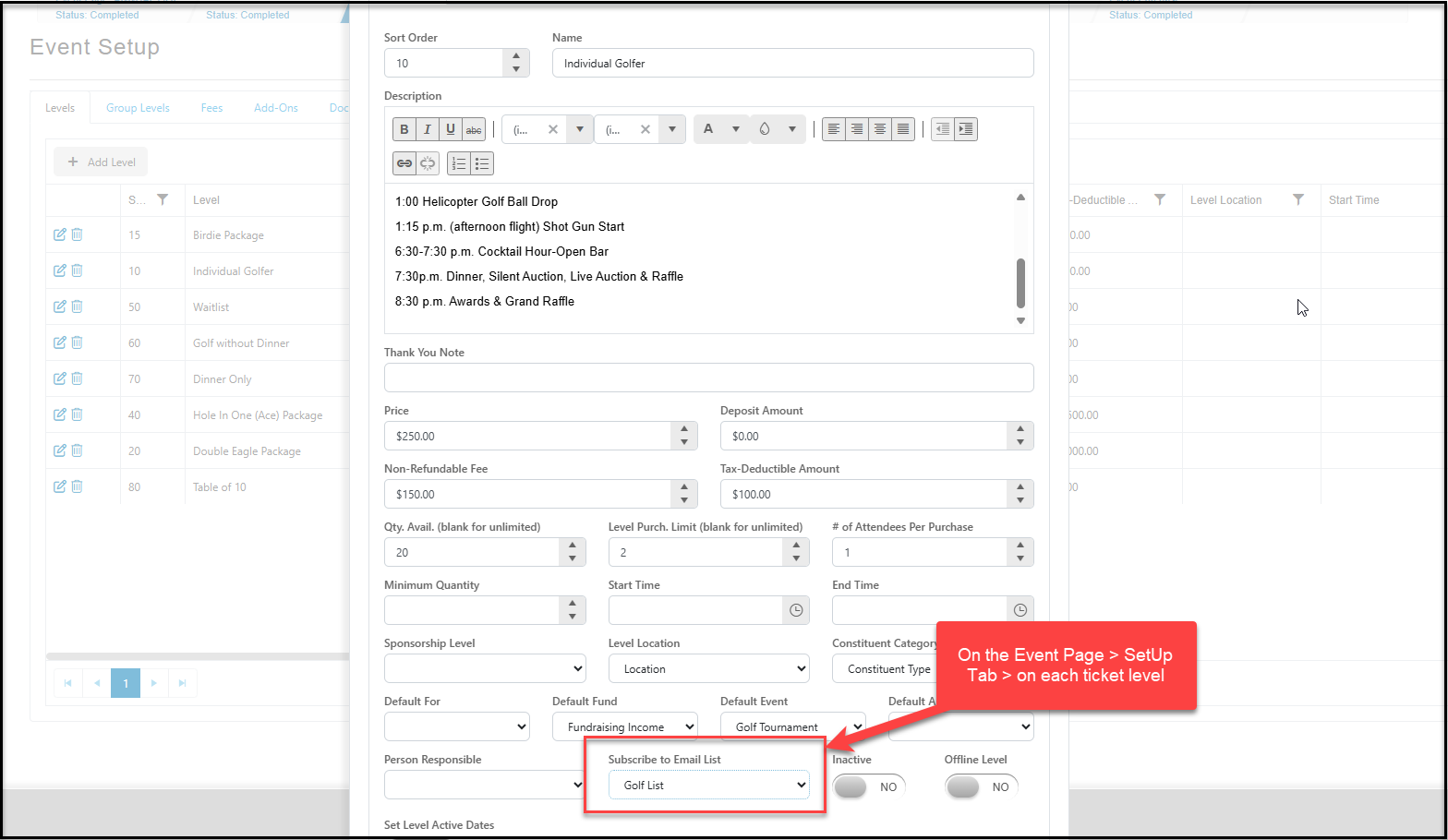
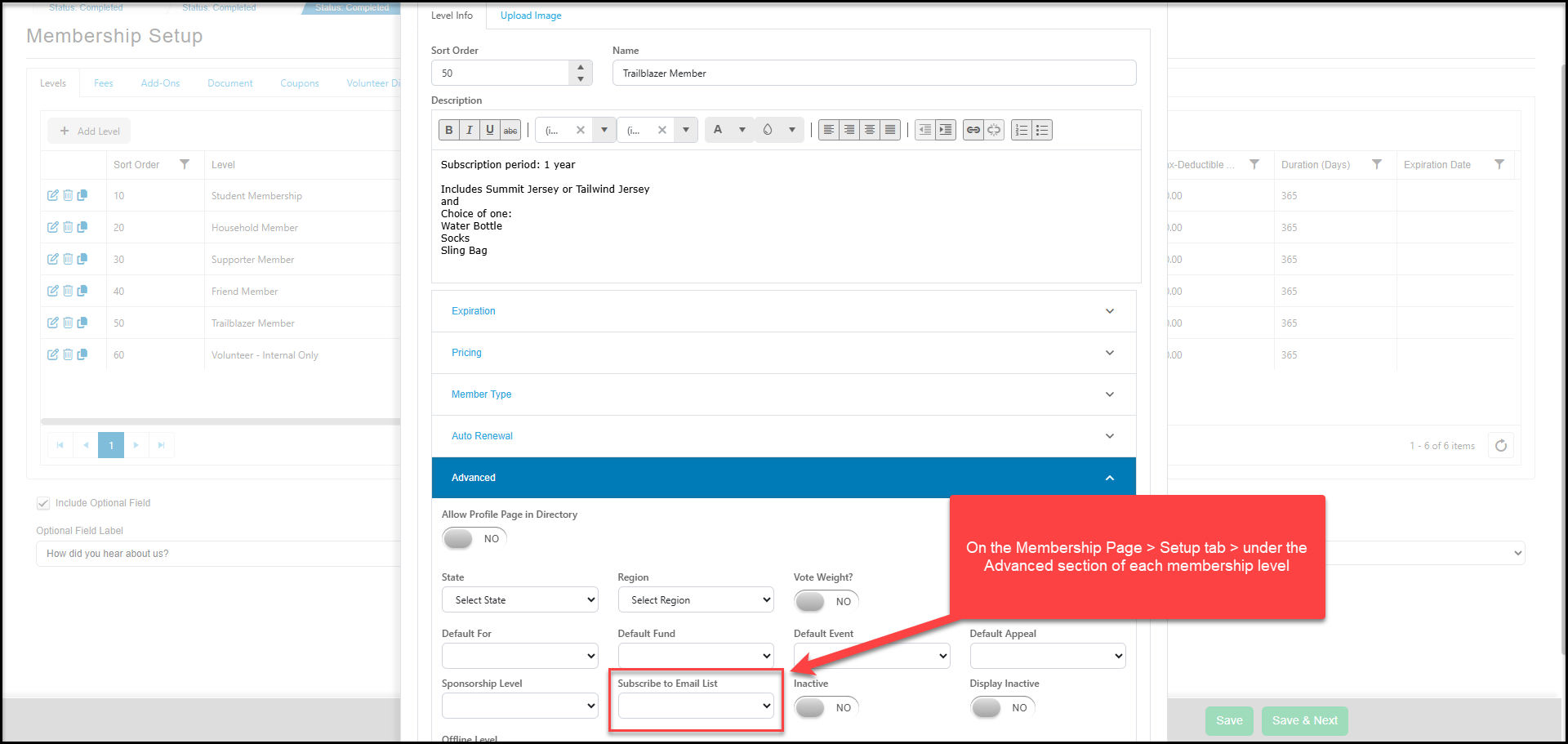
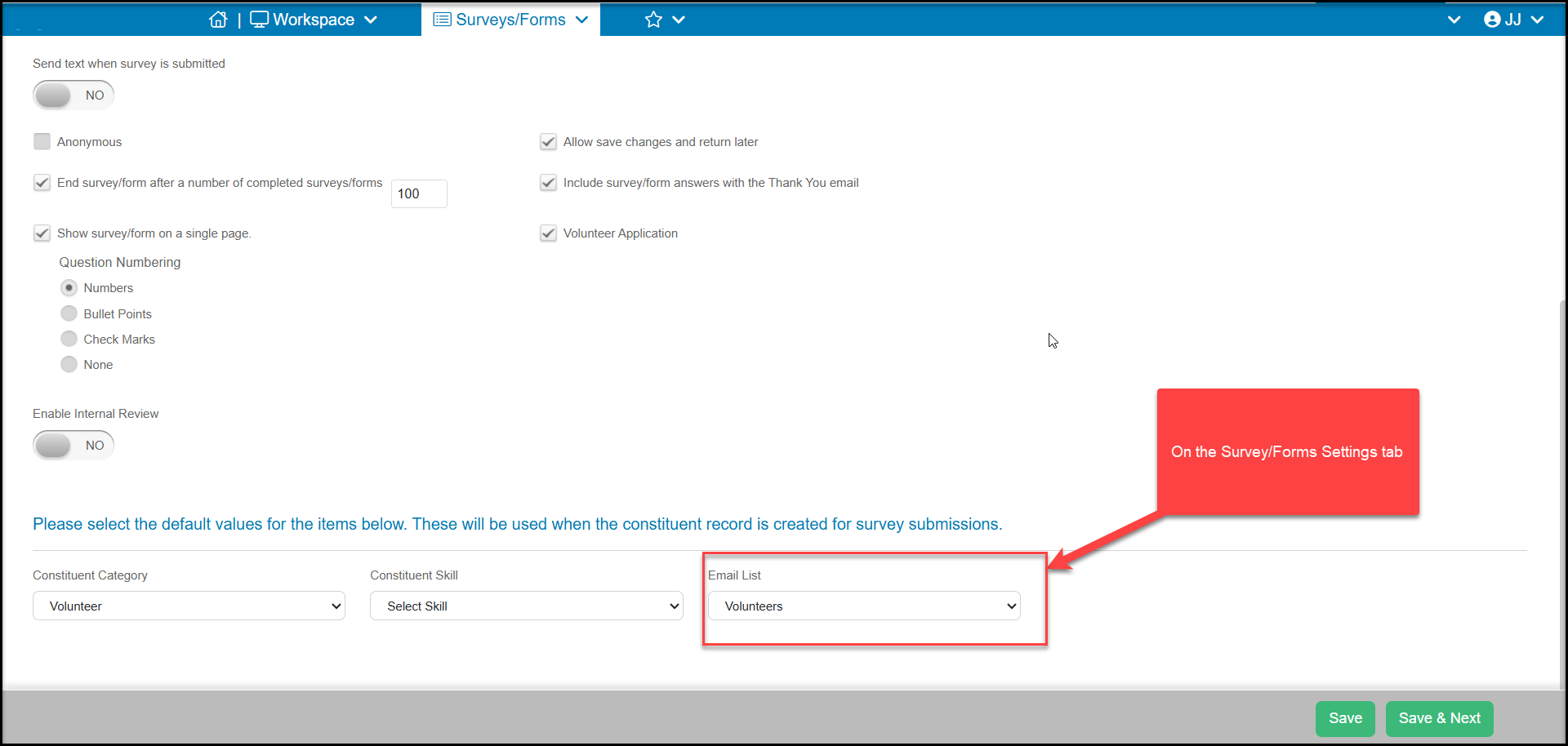
5. Auto-subscribing or inviting subscription to email lists via event, donation, or membership pages.
Manually Assigning Constituents to an Email List
You can update a constituent's profile page and add them to an email list in the Email Lists field. Click in the white space to add them to an existing email list.
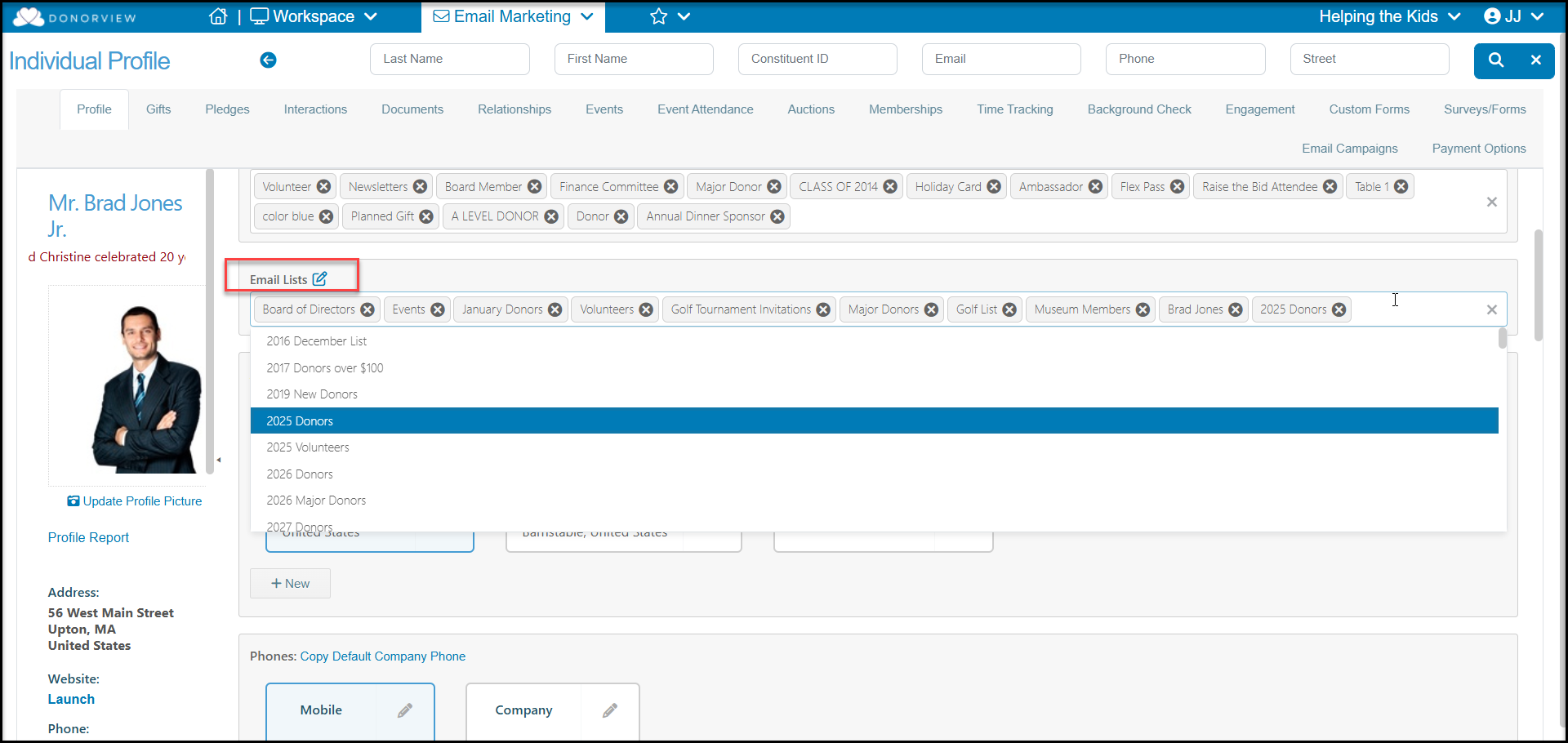
You can also add groups of constituents by filtering your grids and using the Actions menu to Create Email List or Batch Update feature.
Importing New Constituents
If you have an email list that was not imported during your implementation process, you can import it into DonorView, however you may want to check for duplicates before you import this list. The email list import process will attempt to match to existing constituents by primary email address. If a constituent already exists in your database, but does not have an email address or has a different email address than the one you are importing, a new constituent record will be created. You can compare your existing constituent list with your potential imports in Excel to identify duplicates and remove them prior to import.
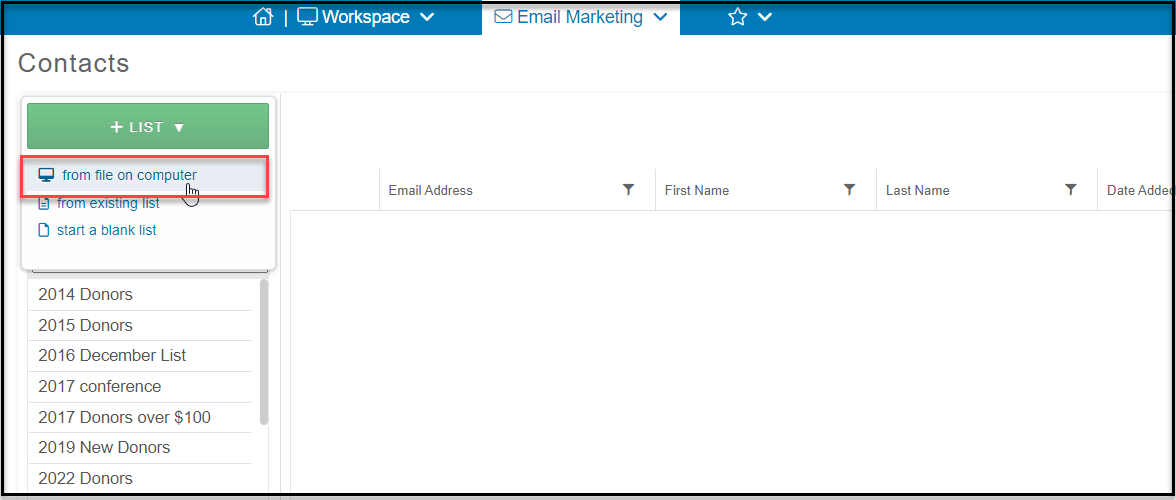
To import a list, go to the Email Marketing module Contacts page and click on the large green +List button to import a list. Click on from file on computer.
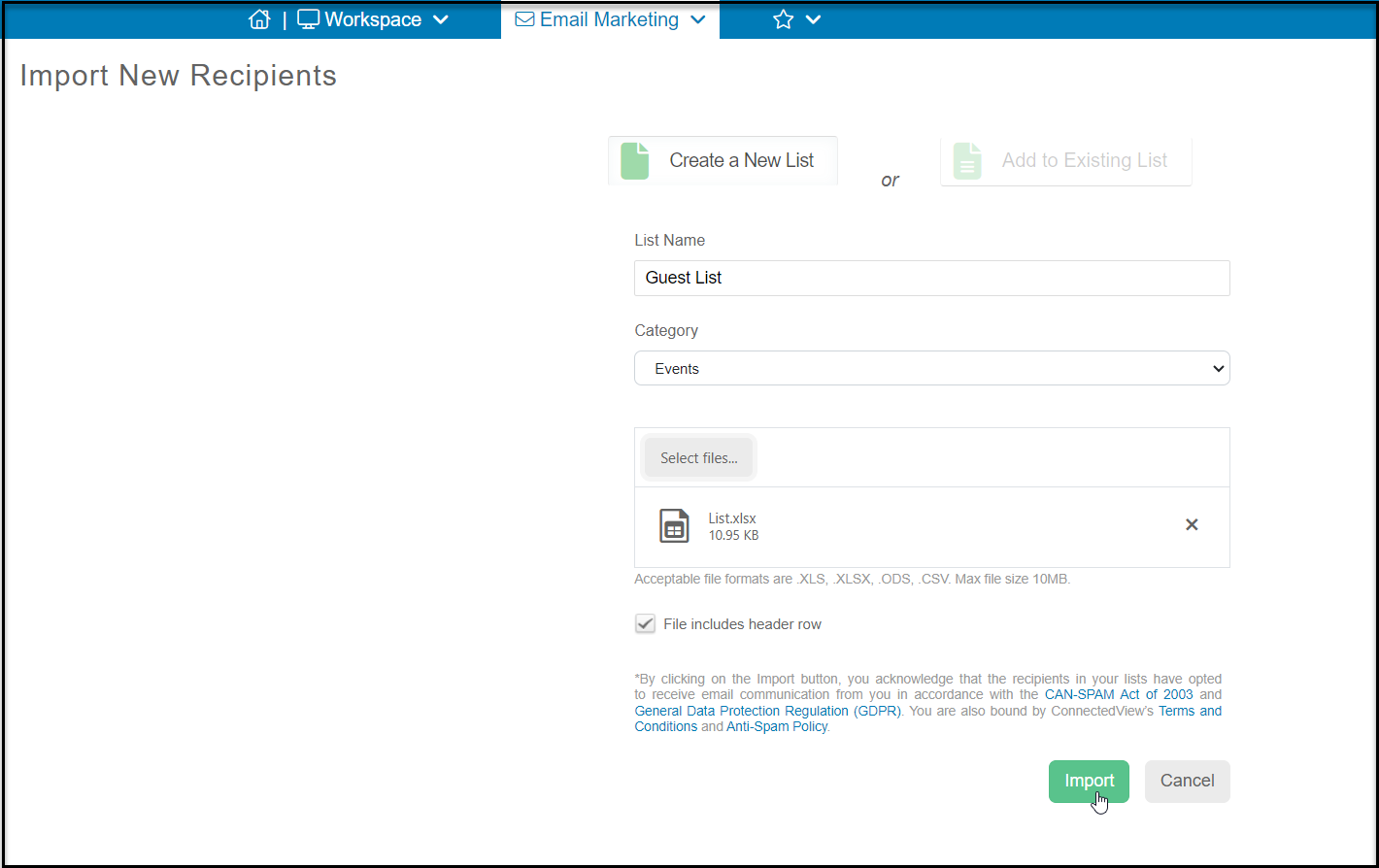
Next you will enter the new List Name and List Category. Click on Select files to upload your file. Once the file is uploaded, you can check the box if your File includes header row. If your file does not have a header row, you can uncheck the box. Click Import to import the list.
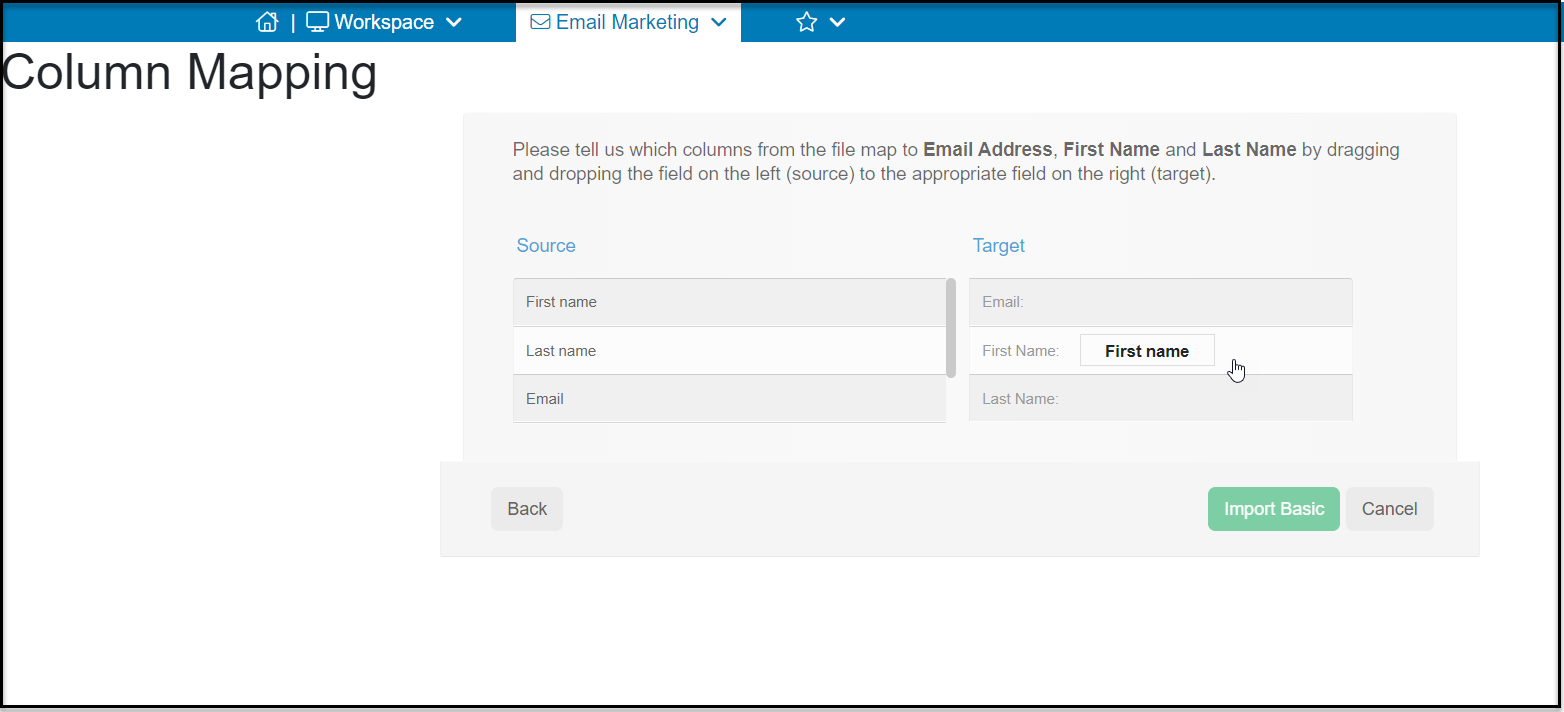
With your list imported you will next map the fields to tell the software which column from your file matches to the Email, First Name and Last Name fields. You will drag the name of your column from the left onto the appropriate DonorView field on the right. Click on Import Basic to import your list. You will now be able to see your list on the Contacts page and see all the new constituents in your Constituents grid.
Manually Adding One Recipient at a Time
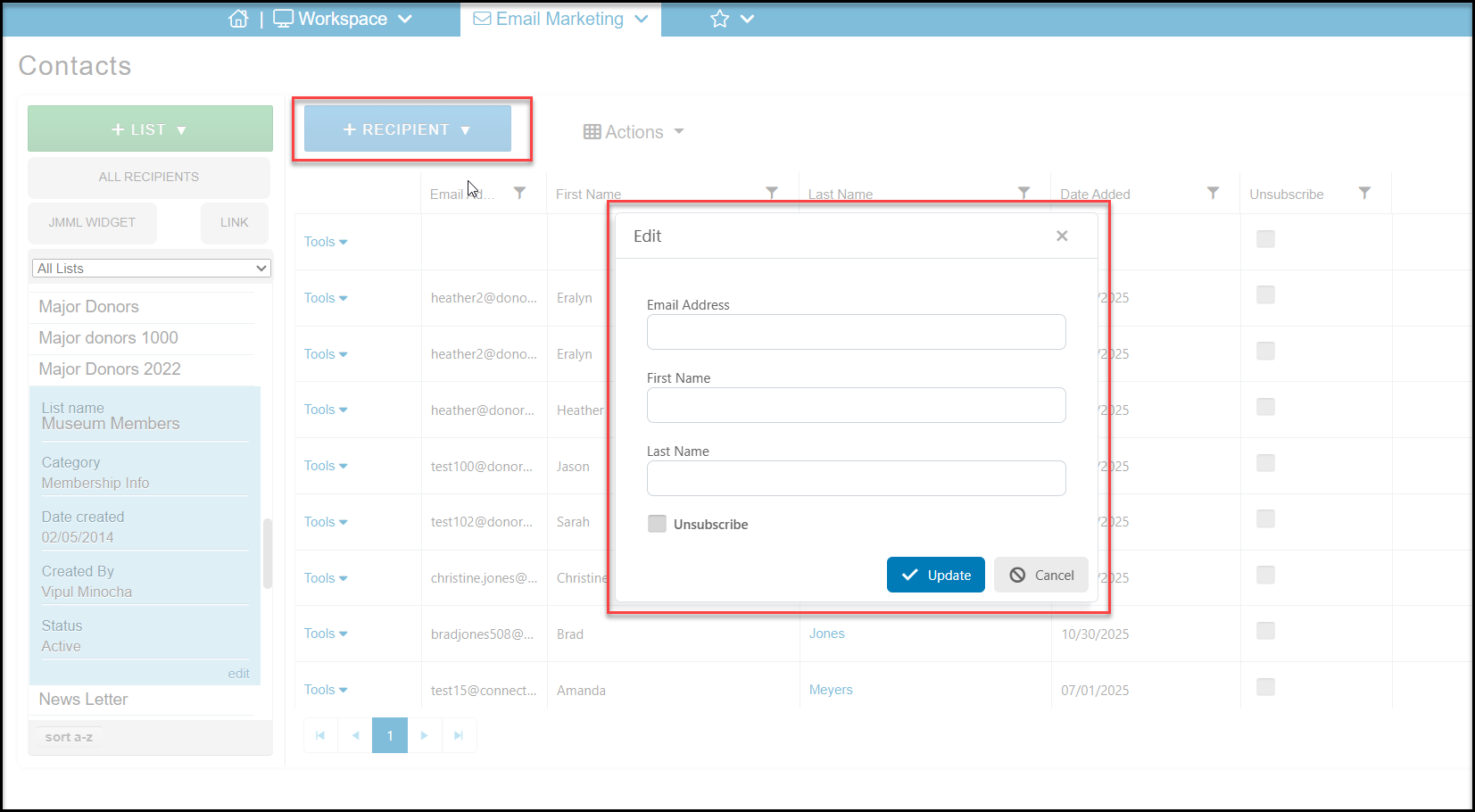
From the Contacts page with an email list selected, you can also use the +Recipient button to add recipients one at a time. Note this is only used for adding brand new constituents, not to assigning existing constituents to the list.
Inviting People to Subscribe
You have two options for inviting constituents to subscribe to your mailing lists. One is by using the unique URL link created on the Contacts Page and the other is by generating a Join My Mailing List (JMML) widget. You can learn more in this article: "How do I invite people to subscribe to my to email lists?"
Auto-Subscribing or Inviting Subscription Via Pages
You can auto-subscribe constituents who make a donation, complete a survey, or sign up for an event or membership to a specific email list. Constituents who are auto-subscribed can unsubscribe anytime by clicking the link at the bottom of your email campaigns.
Each the pages also have an option to display email subscriptions that the constituent can opt-in, instead of auto-subscribing them. Note that constituents can only opt-in to List Categories, not to a specific list. You can learn more about the opt-in features in the articles related to each type of page.