Direct emails are a fast and easy way to get an email out to one or many constituents, depending on your needs. To send out a single email, you can click on a constituent’s email address which appears directly on the main grids or within a constituent's profile.
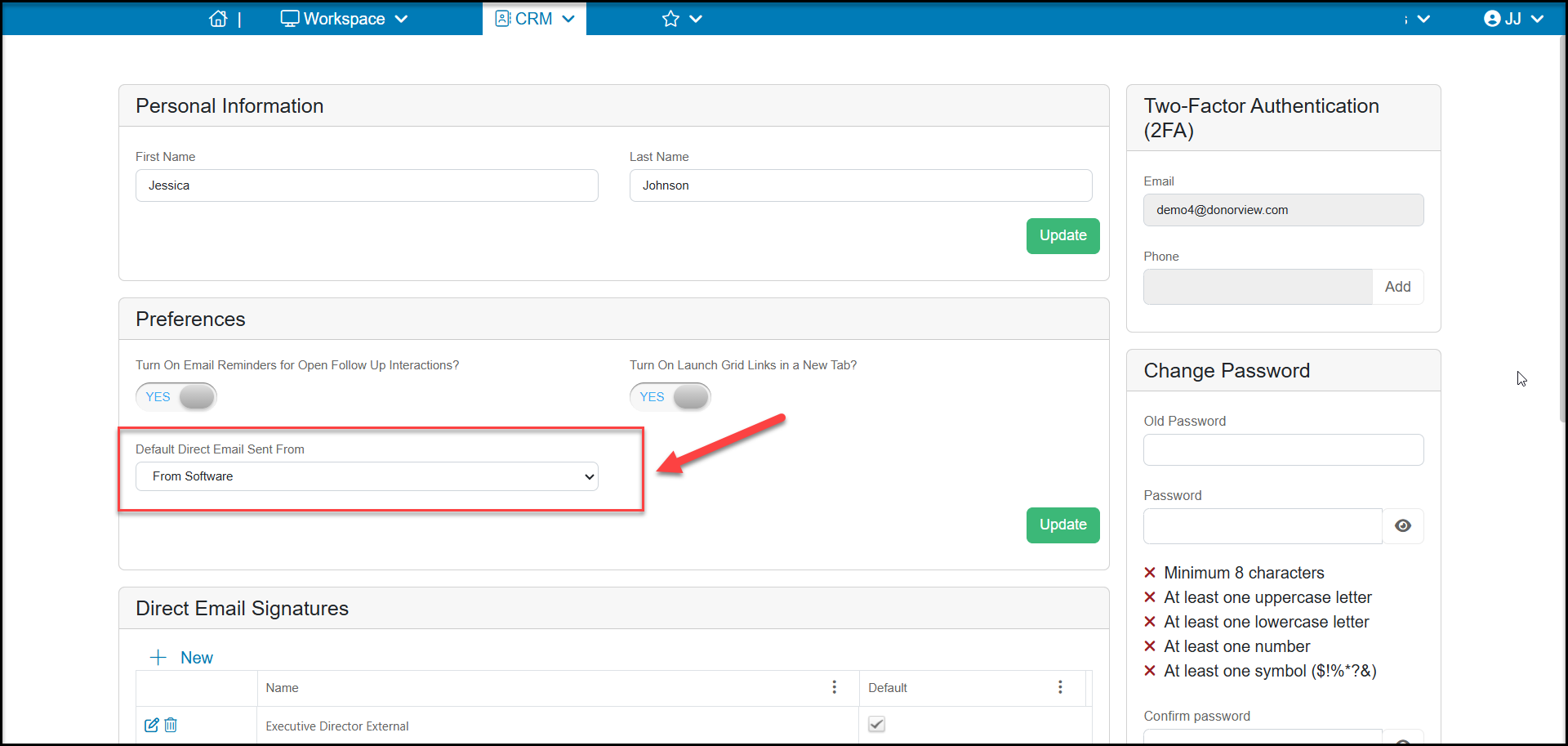
If your default email client for your browser is still being launched when you click on an email address, mouse over your name in the upper right-hand corner of the software and click on “User Settings.” Under Preferences, in the “Default Direct Email Sent From” field you can select “Send from Software” which will activate this Direct Email Feature. Or you can select, “Send from Email Client” which would allow you to continue to send single emails from whichever desktop email client you currently use and have set up with your browser. Be sure to click Update to save your changes.
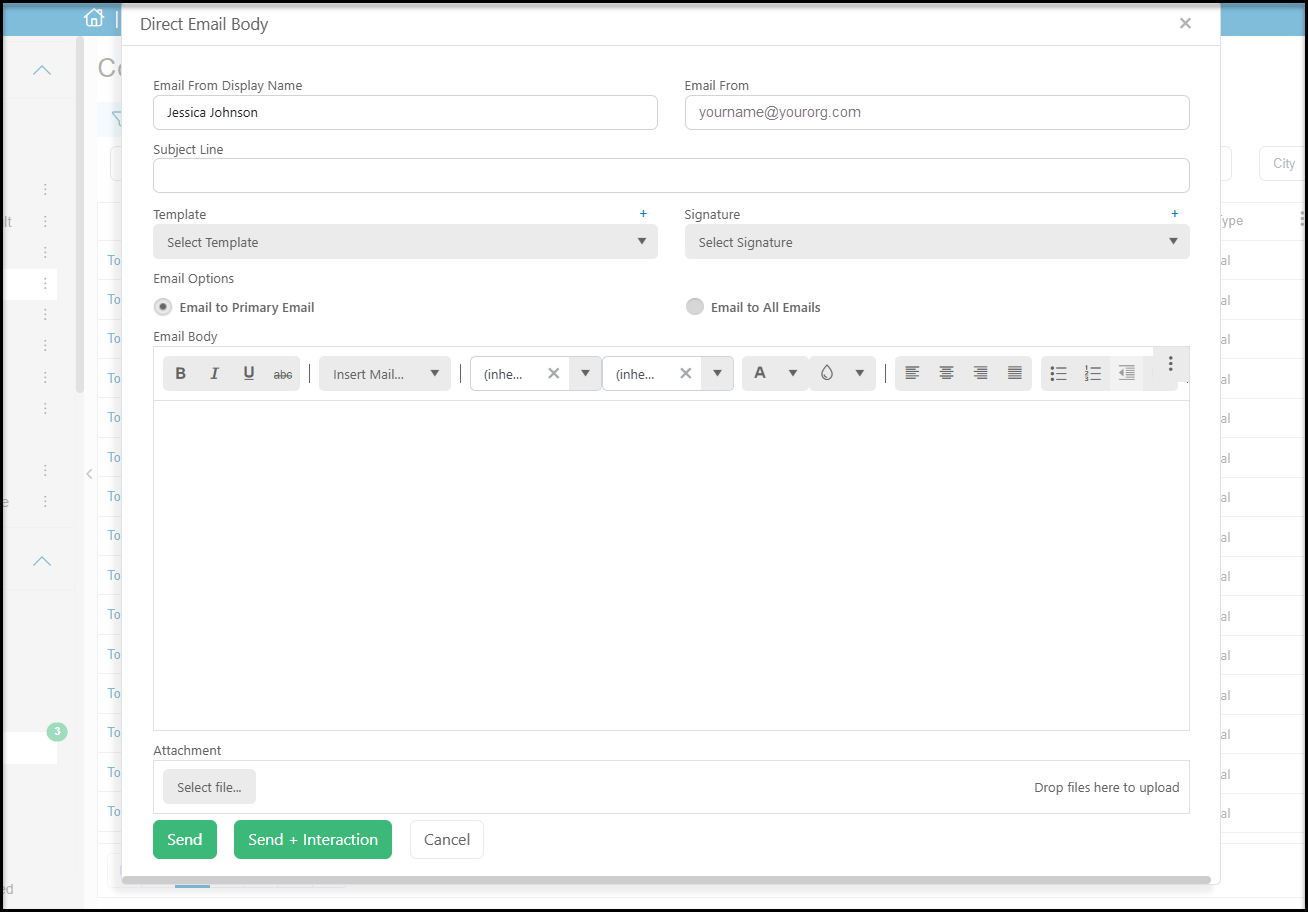
With your preferences set to "Send From Software", which you click on an email address you can complete the following fields:
- Email From Display Name: What name should display as the sender of this email. Note: This field will be auto populated based on the name listed for your user account, but you can change this.
- Email From: The email address that should display as the sender of this email. Note: This field will be auto populated based on the email address listed for your user account, but you can change this. Please do not use an email address from a public provider such as Gmail, Yahoo, Hotmail, etc. or the email will go directly to spam.
- Subject Line: What will be displayed as the subject for this email.
- Template: Select which saved Template should be inserted as content within the Email Body.
- Signature: Select which saved Signature should be inserted within the Email Body at the end.
- Email to Primary Email: Selecting this option will send only to the default email address listed on each constituent’s record.
- Email to All Emails: Selecting this option will send to both the default and all “other” email addresses listed on each constituent’s record.
- Email Body: Enter the content that will display as the email body. You may include mail merge fields from the grid you are sending the email from and edit the styling including font, size, and color of the body text.
- Attachment: Upload a single document to be attached to the outgoing email.
Choose Send to send the emails or Send + Interaction to send the emails and also create an interaction record for each constituent.
If you wish to send a direct email to multiple constituents at the same time, you will need to filter the grid for the desired recipients. Once those recipients appear on the grid, you can mouse over the Actions menu and click “Send Direct Email.” This will launch the same dialog as above.
Depending on the number of constituents you are sending an email to, to the email may go into a queue which sends out emails based on the order they are received.
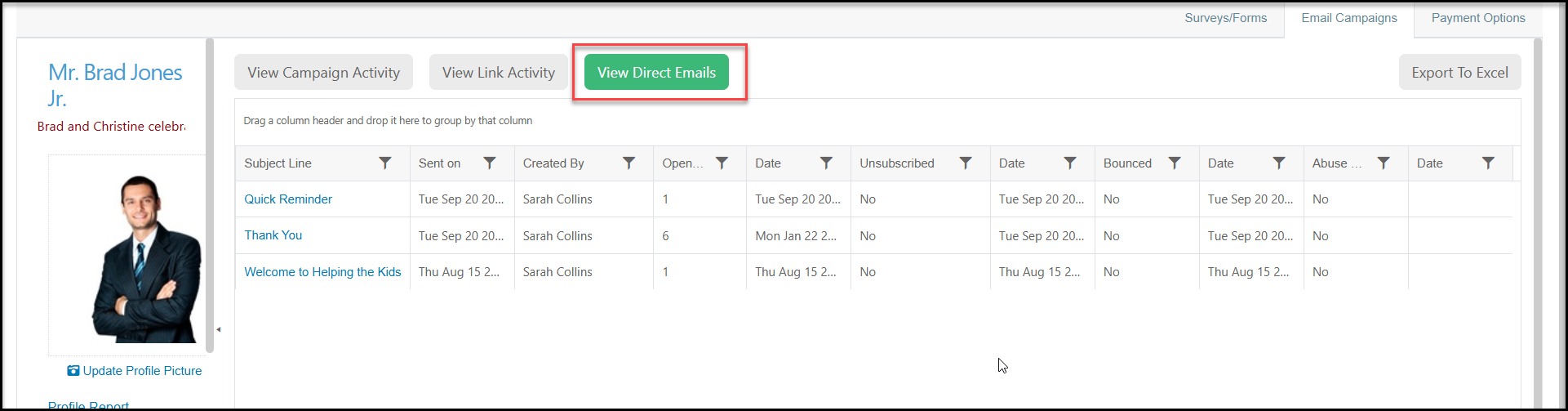
Once your direct emails have been distributed, you can view the open rate for each recipient by going into their constituent record and clicking on the Email Campaigns tab. Once there, you will find a button called, “View Direct Emails.” Click this button and you will see a list of all the direct emails sent out. Clicking on the emails subject line will launch a preview of the email that was sent. From the grid you will also be able to see when it was sent, by whom and whether the recipient opened the email and what time they read it.