Unlike direct contributions where the money has already been received, pledges are commitments to pay in the future. Generating letters to acknowledge a brand new pledge is done from the Pledges - Summary grid.
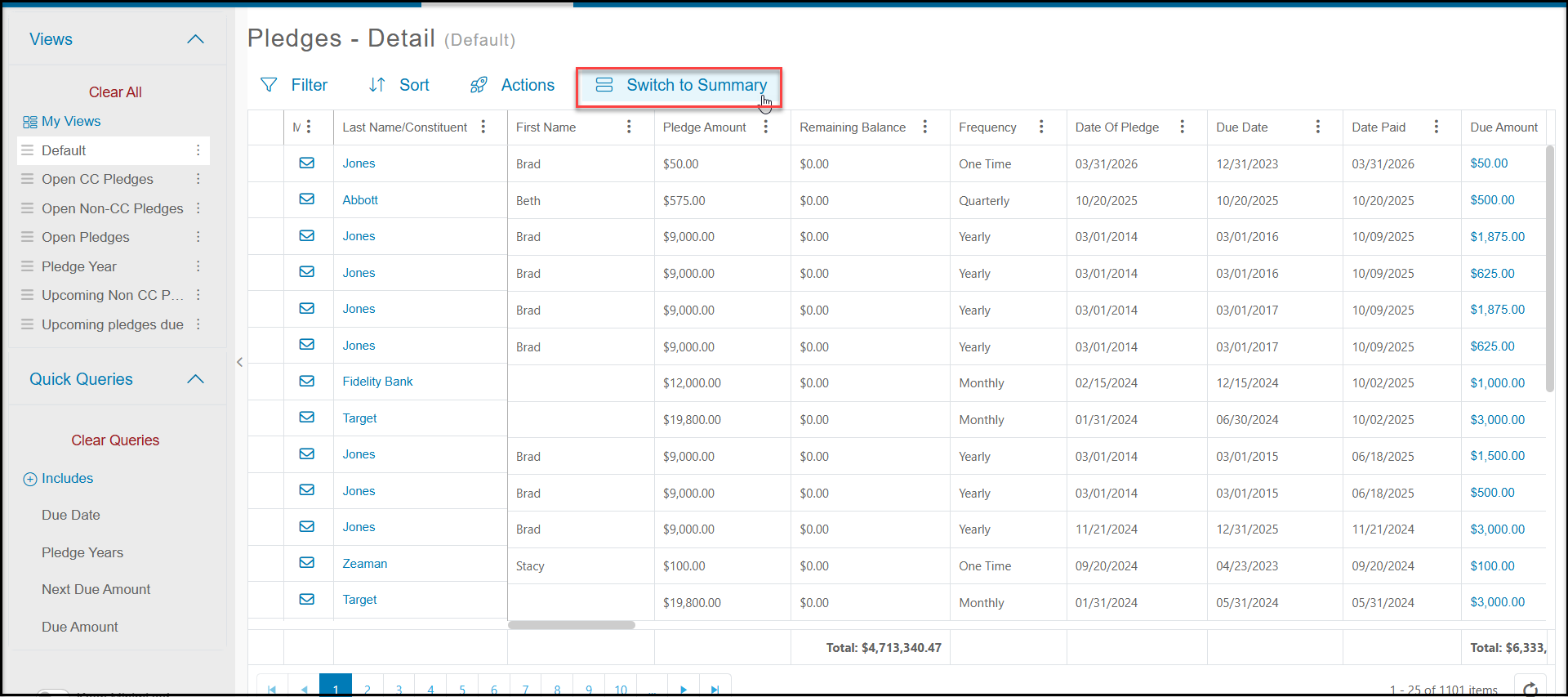
1. If you are on the Pledges - Details grid, click on Switch to Summary.
2. Select the date range of the pledges you wish to acknowledge by adding a filter to the Date of Pledge field.
3. You can also add filter to other fields like the For, Fund, Event or Appeal fields to identify specific kinds of pledges for the letter you will select.
4. Once you have your list identified, click on the Actions menu and select Print/Email Mail Merge.
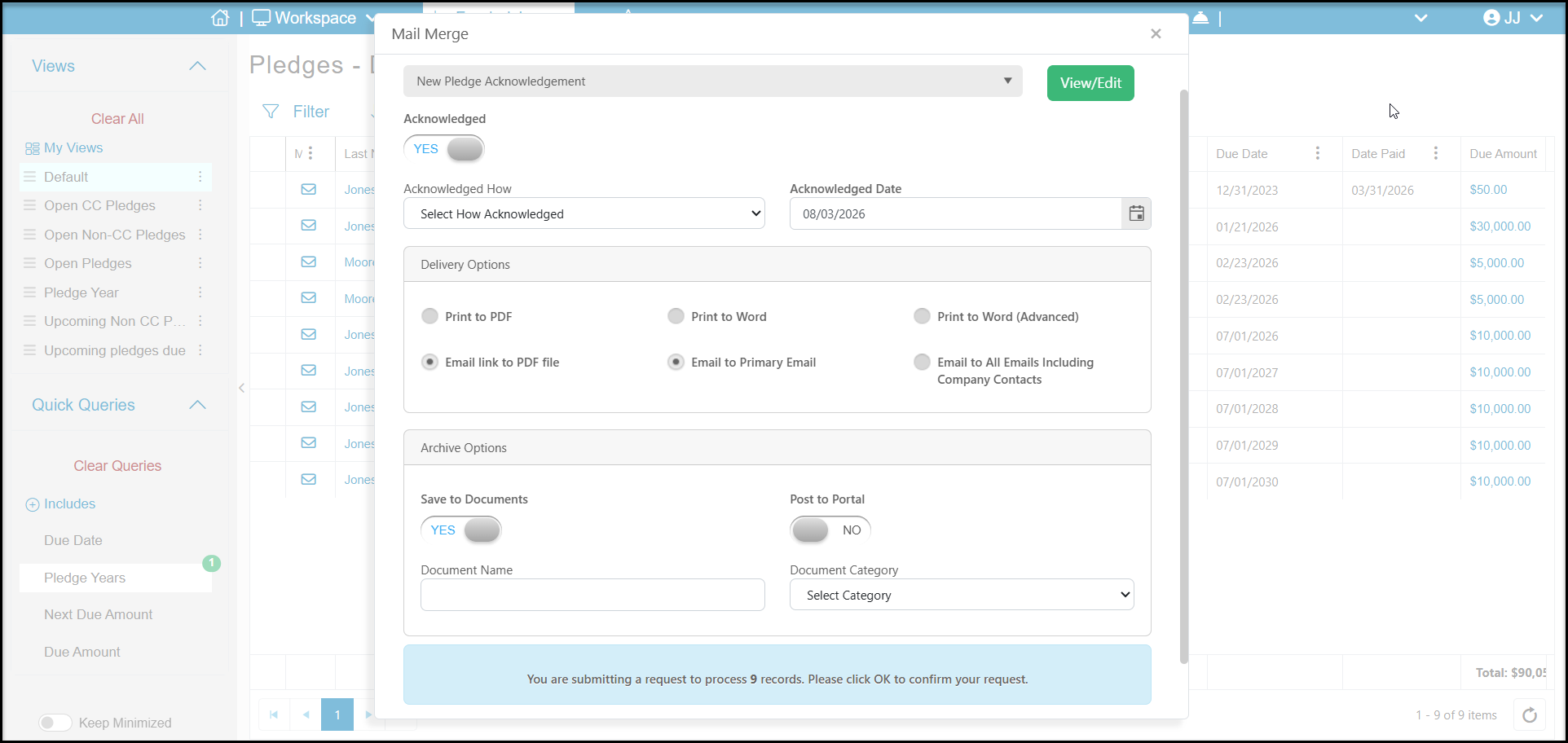
- In the pop-up window select the options for the fields:
- Mail Merge Template - this is a drop down list of all the mail merge gift template letters in your library. You must choose a letter to proceed.
- Acknowledged - Toggle this to YES to update the record with the acknowledgement information.
- Acknowledged How - Select the method you will be sending this acknowledgement letter
- Acknowledged Date - defaults to today's date, but you can edit as desired.
- Delivery Options:
- Print to PDF will print the letter in PDF format and open in a new browser window so you can review the letter prior to sending or printing.
- Print to Word will download the letter. If your letter does not download, be sure you have turned OFF your browser's pop up blocker.
- Print to Word (Advanced) is not used for acknowledgement letters.
- Email Link to PDF file will open an email to send once the rest of your selections are made.
- Email to Primary Email - sends just one email to the primary email address for this constituent
- Email to All Emails including Company Contacts will send a copy of the email to all email addresses on file for this constituent.
5. Archive Options:
- Save to Documents if set to YES a copy of the letter will be saved in the constituent's Documents.
- Post to Portal is used with the Advanced Portal only and would allow the constituent to download a copy of the letter from their portal account.
- Document Name is any name you would like to give the document.
- Document Category is a dropdown list to choose the appropriate category for this acknowledgement document.
6. Click OK to generate the letter or open the email to edit the message prior to sending.