Admin Level users can adjust the security settings of other users to allow or not allow the user to send texts. Only users with Allowed to Send Texts under Text Messaging in their User Security Settings can send text messages.

You can send text messages from the Actions menu on the following grids:
- Constituents
- Events
- Event Attendance
- Memberships
- Auctions
- Auction Bidders
- Volunteer Attendance
- Peer to Peer Dashboard
- Youth Membership
As with any messaging, you will start by adding queries or filters to your grid to display only those constituents you wish to contact.
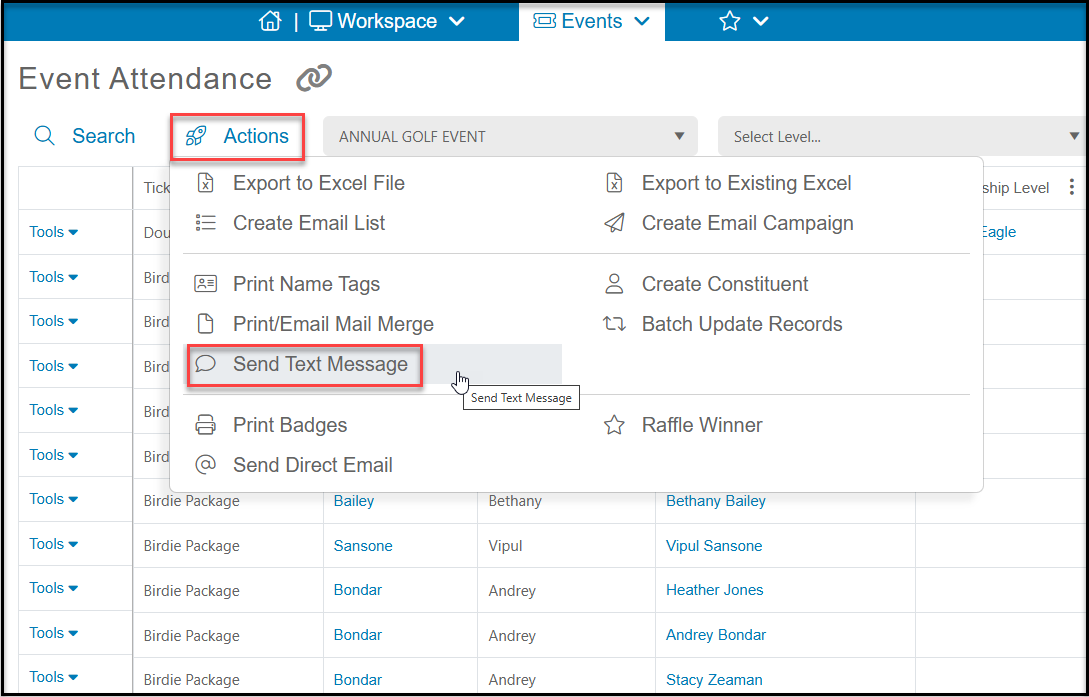
In our example, we will use the Event Attendance grid and plan to send a reminder to all the attendees. Once we have the constituents identified on our list, go to the Actions menu and click on Send Text Message.
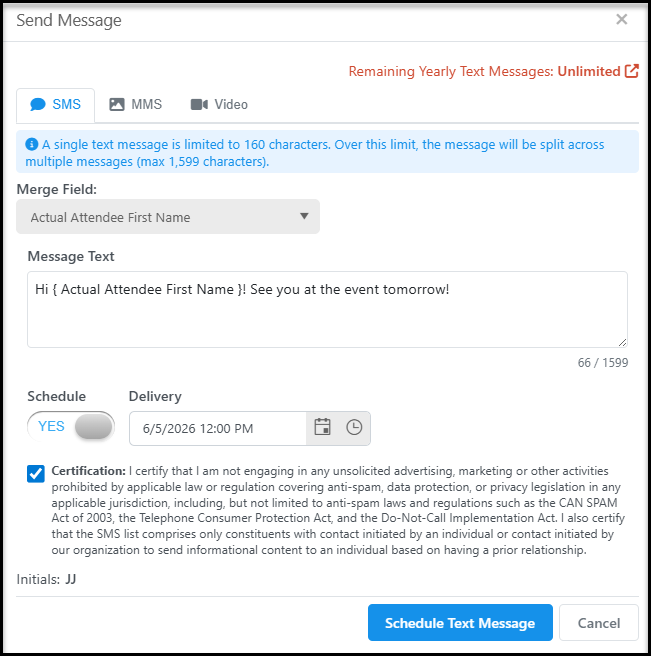
In the new window, you will see how many messages you have remaining either for the day or for the year if you have not sent any messages yet that day. Remember that there is always a 2000 message cap on sending text messages to your constituents. A message is counted for each constituent that is on your list.
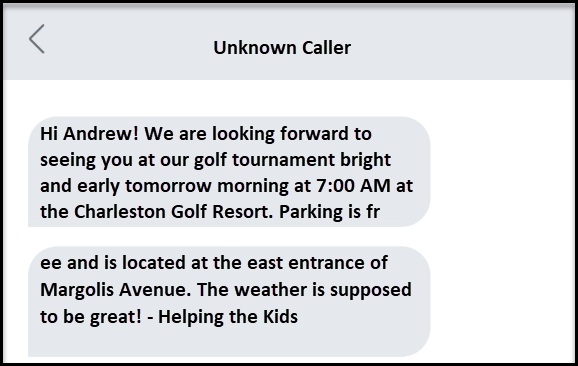
Text messages are intended to be short, quick messages. Because of the way the messages are sent, your text message may be broken out into smaller sub-messages. Each sub-message is limited to 160 characters. If you go over that limit, your text message will be broken out into multiple shorter sub-messages. The max character limit for a single originating message is 1,599 characters. In the example below, the message is a total of 274 characters (including spaces), so it is broken out into two messages.
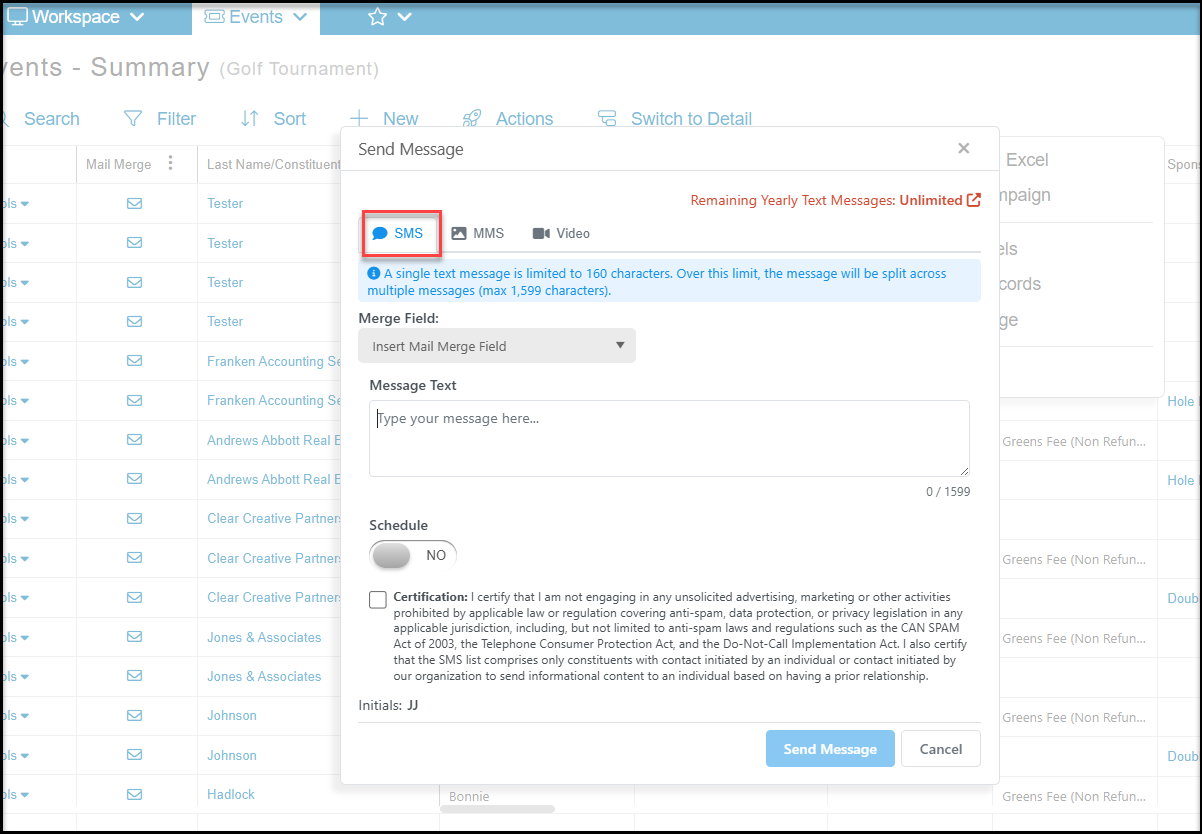
There are three options for sending text messages, SMS (Short Message Service), MMS (Multimedia Message Service), and Video. The SMS option is for sending text-only messages that do not include pictures or video.
You can personalize your Message Text and insert Merge Fields from the dropdown list. Note that the merge fields available will only limited to those on the associated grid that the message is generated from and all fields may not be available for your message.
Your message can be sent immediately by checking the Certification box to confirm that this is not a spam message and then click Send Message.
You can also schedule your message to be send on a specific day and time by setting Schedule to YES and entering the applicable date and time. Note that texts are sent at the top of the hour and in 10 minute intervals, so a request to send a message at 9:07 will be sent at 9:10. The message is sent at the time, but there is no guaranteed delivery time. Delivery depends on the recipients service provider and could be immediately or several hours later depending on the provider.
Click Schedule Text Message to schedule the message. Scheduled messages will be shown on the Text Messaging Queue grid.
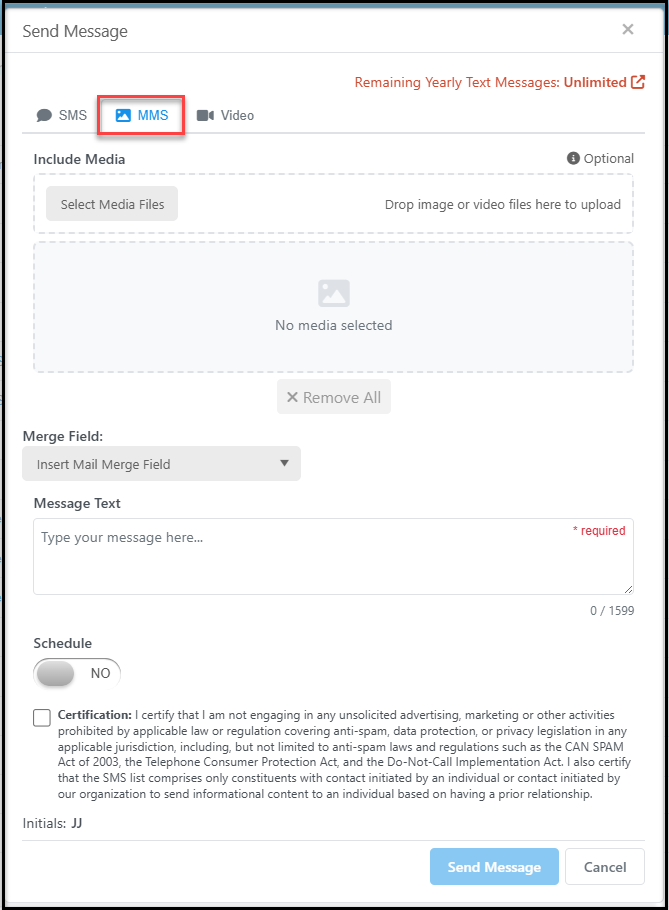
If you would like to include media with your message, you can select media files to attach using the MMS tab. Media is limited to 5 MB total, so be sure to compress your files and minimize your image sizes. You will complete the text portion of your message the same as described above.
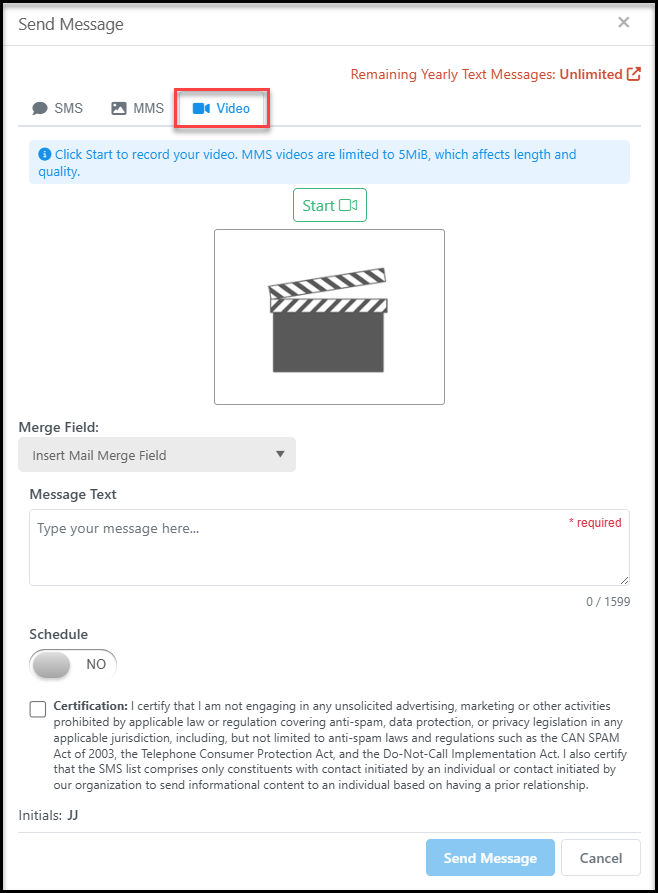
If you would like to record a video to send with your message, you can use the Video tab. Your computer must have a webcam to record a video. Click Start to start recording your video and End when complete. Videos will be short, only about 10 -15 seconds long.
You will complete the text portion of the message as described above.