
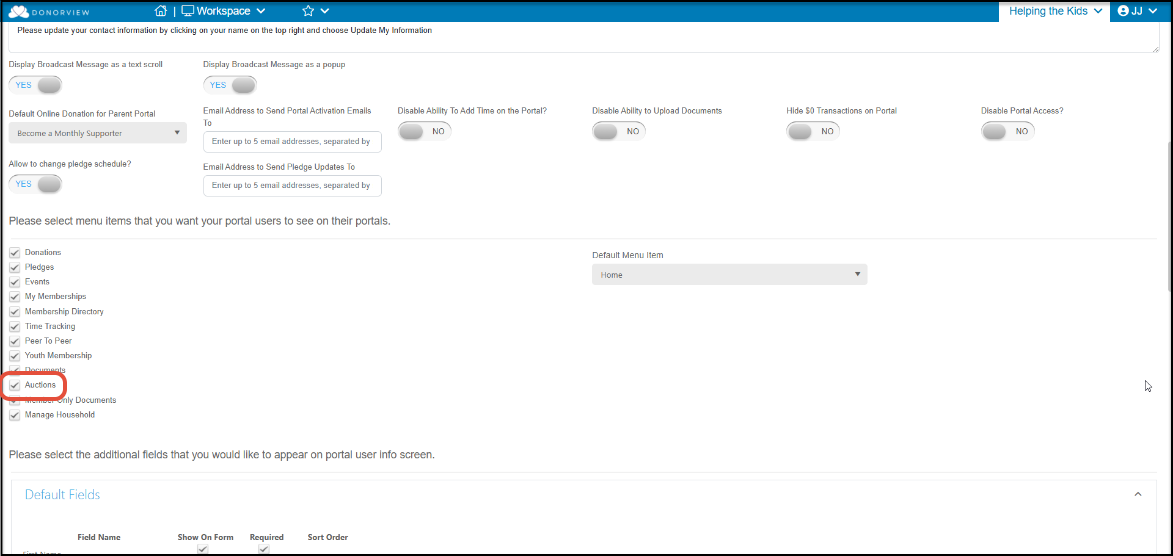
If you host an online auction the Auctions icon will automatically be added to the portal. The Auctions icon is included with both the Basic and Advanced portals. The Auctions icon can also be hidden from the portal if desired by unchecking the box.
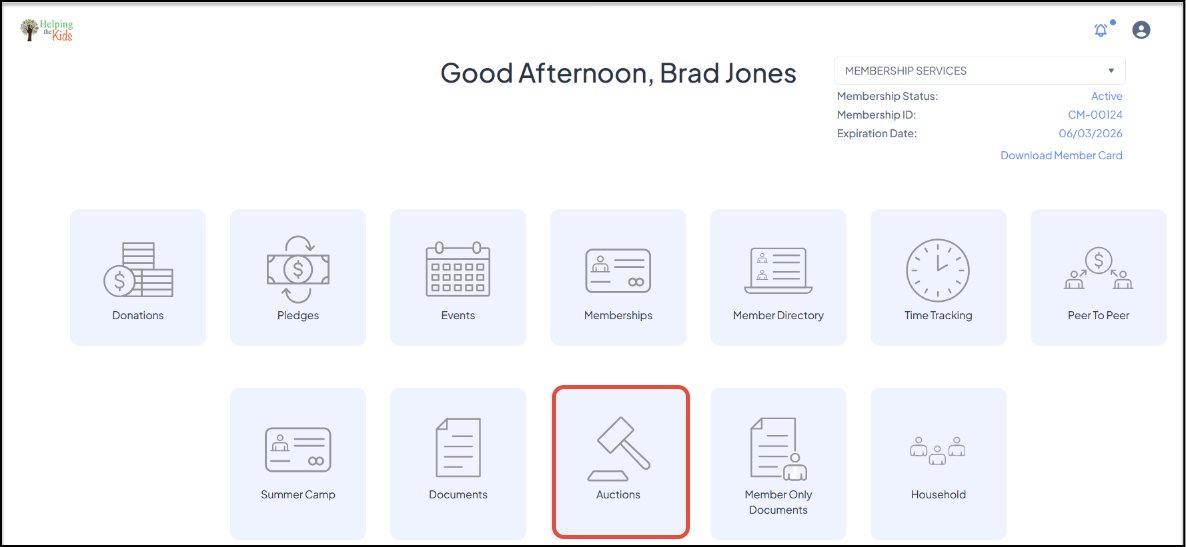
By clicking on the Auctions icon, the constituent can choose the auction from the drop down list and see all of the items they are bidding on, add-ons, paddle raises, and donations. If the auction is still in progress, they will not be able to pay for auction items until bidding has closed. Paddle raises, add-ons, and donations can be paid anytime. Clicking on Launch Auction will open the selected auction page.
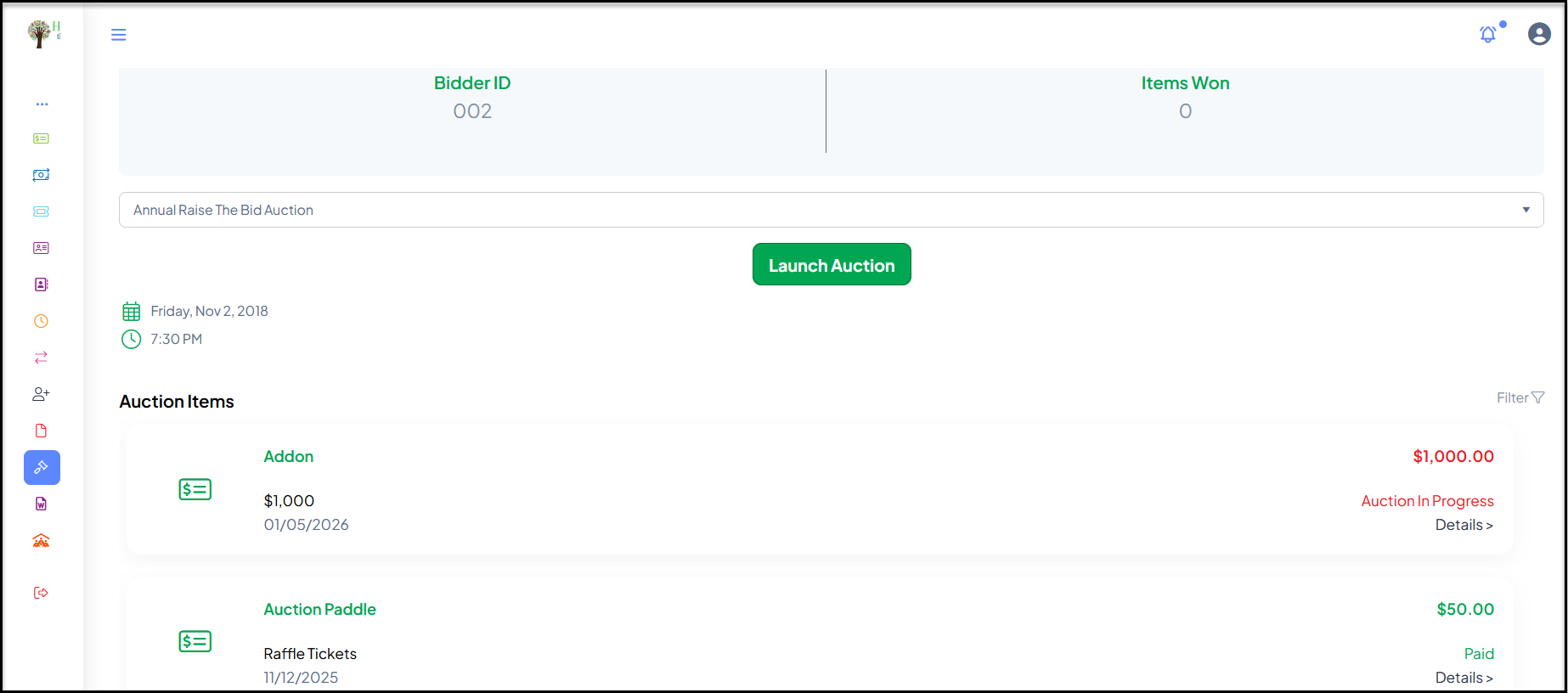
Clicking on Details next to an item will open a popup window to allow payment or generate a receipt if the item has already been paid.
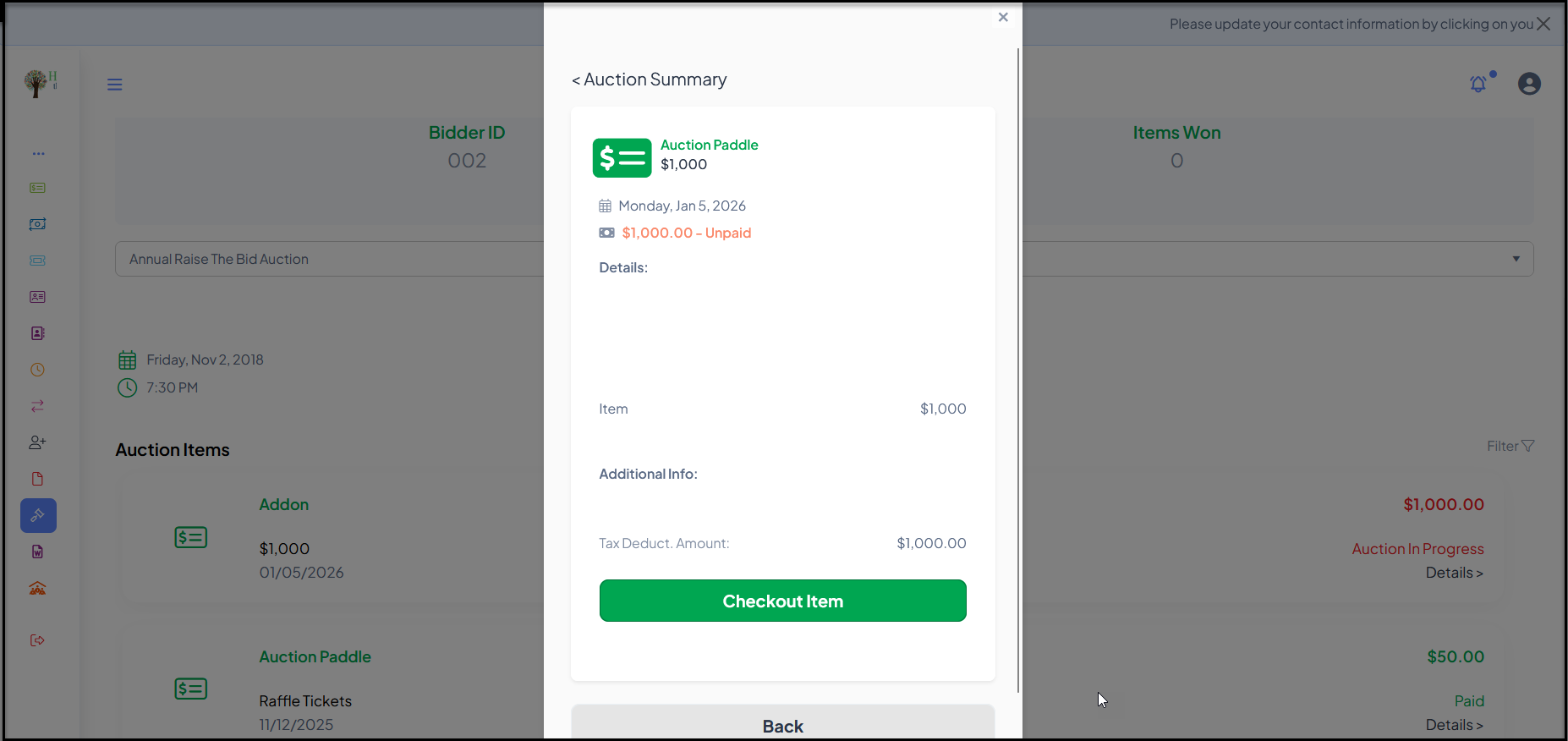
Once the auction has closed, the constituent can group together all open items and do a single checkout with their credit card. You can learn more about the portal check out for auctions in this article: "Mobile Checkout Using the Constituent Portal"