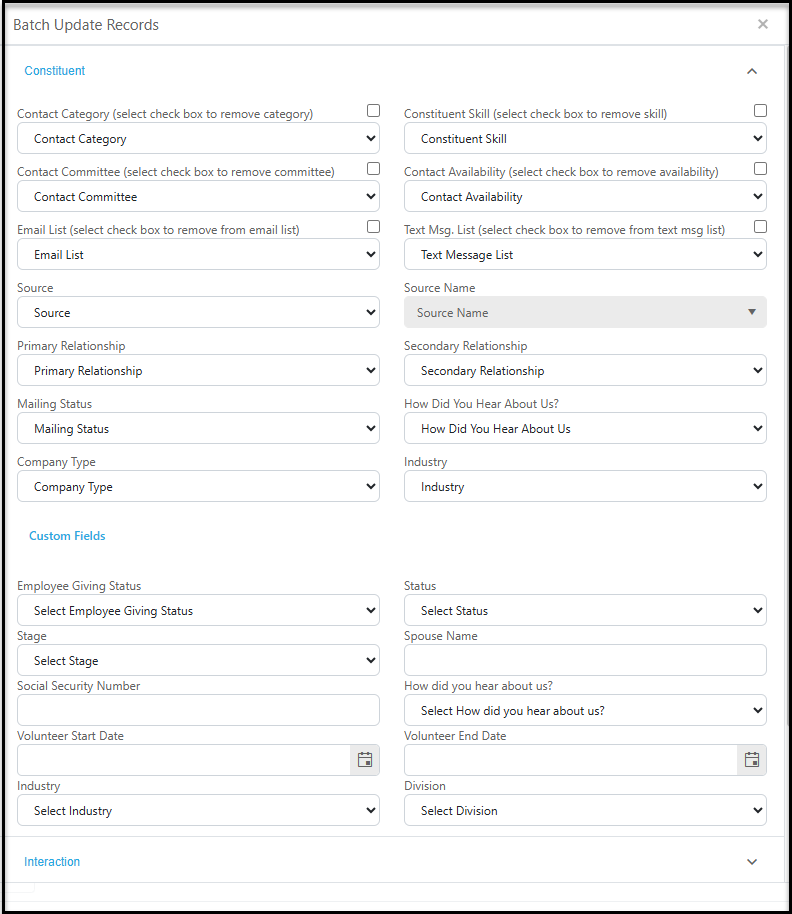
When selecting Batch Update Records from an Actions menu, you can update information for the constituents shown on your grid, up to a maximum of 500 records, all at once (with the exception of the Gifts Grid, which will allow unlimited records to batch update.)
Note that multi-select fields and dropdown/picklists must be updated with all the values you wish to use prior to starting the batch update. You cannot update the values available in the fields from the Batch Update Records feature.
Begin by filtering the grid for the constituents you would like to update, ensuring that your view includes no more than 500 records. Select the Actions menu and click on Batch Update Records.
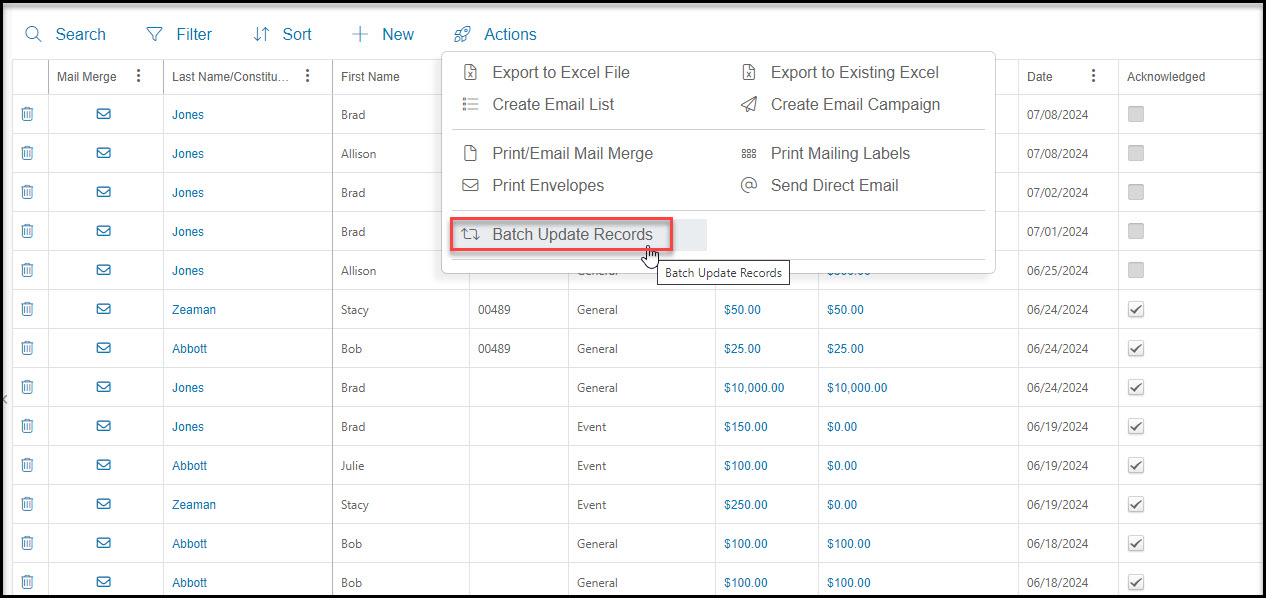
The first section that can be updated is the Constituent section. Here you can add or remove constituents from a Contact (aka Constituent) Category, Committee, Email List, Constituent Skill, Availability, or Text Message List. You could also add the Source or Source Name, update their mailing status, or add a Primary or Secondary Relationship into all their records.
If your organization has any custom fields created, you can also batch update any custom field. In the example below, Employee Giving Status, Status, and Stage are all custom fields.
Fields will only update if new information is been recorded. For example, if you have not selected any Constituent Skills in this batch update, that field will not be modified in any constituent's records.
When you are finished selecting which fields will be updated, click the Update button at the bottom of the window to complete the action for all constituents shown on your grid.