The volunteer module also includes a scheduler feature which is used in conjunction with volunteer events. To utilize the scheduler, build the volunteer event first and be sure to turn on the Scheduler and mark it as a Volunteer event on the Event Settings tab. To learn more about volunteer events, see these articles: https://support.donorview.com/en/support/solutions/folders/9000200171
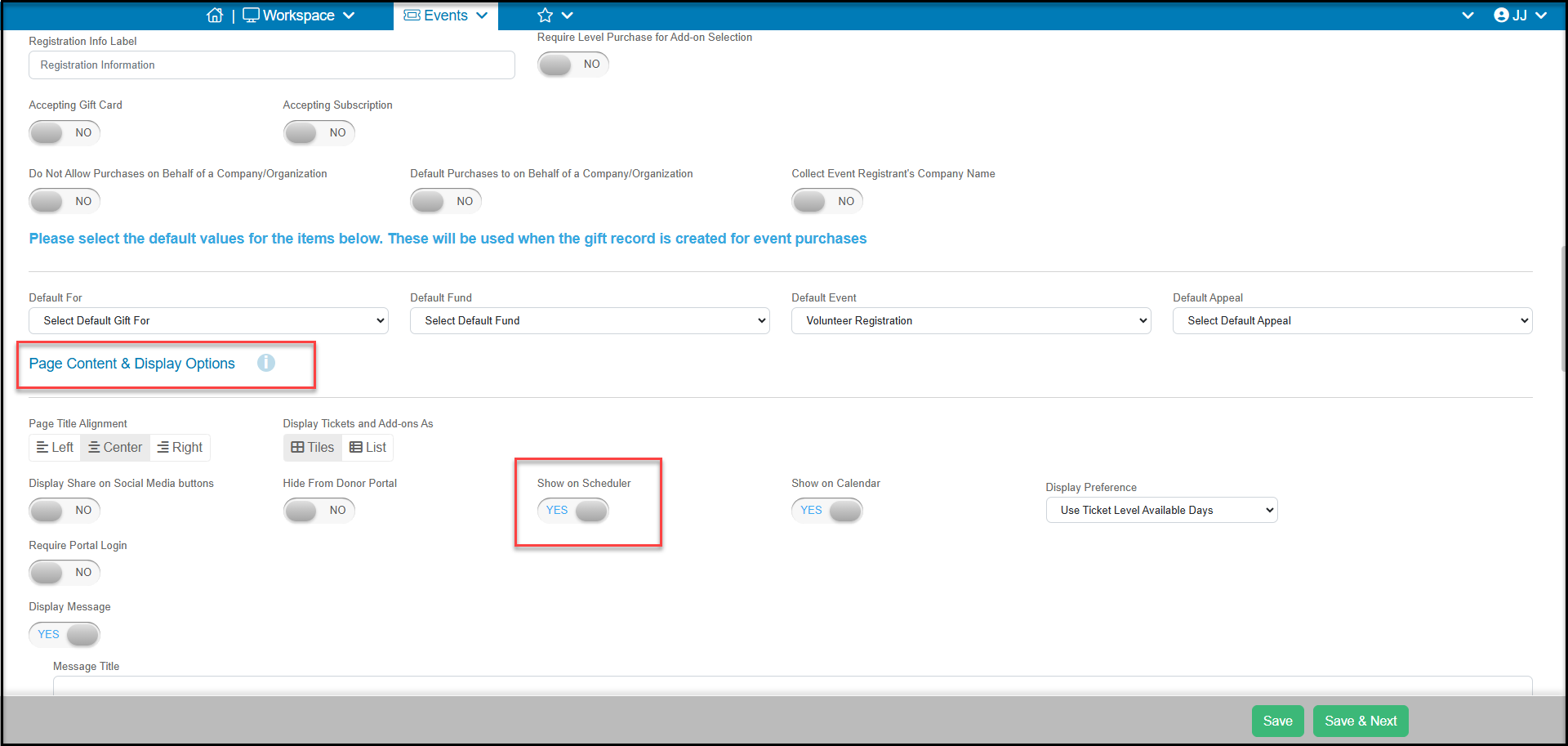
To activate the scheduler feature, be sure that your event page includes Show on Scheduler set to YES on the Event Settings tab.
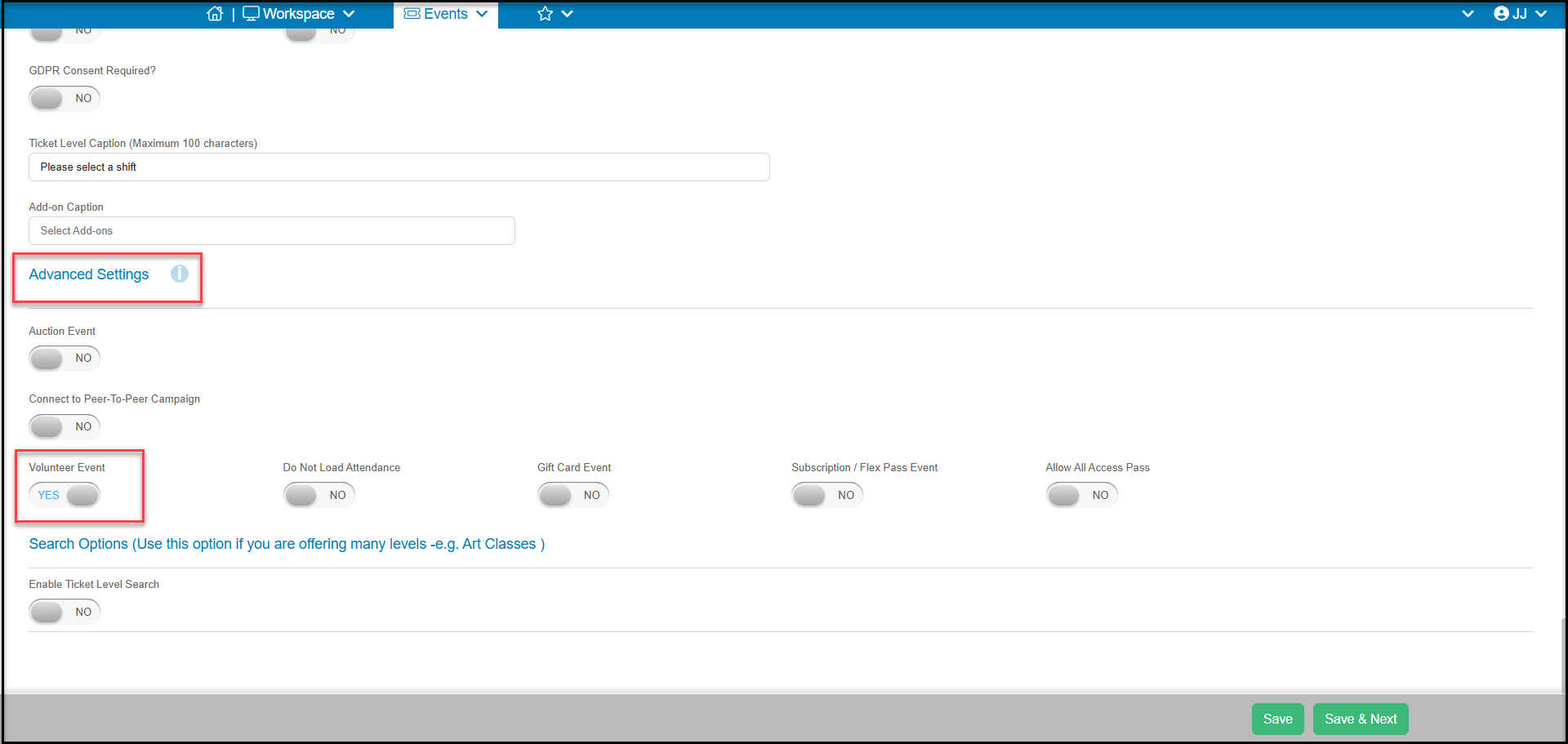
To ensure the event page syncs with the Volunteer module, also ensure that Volunteer Event is set to YES on the Event Settings tab.
- Once your volunteer event is created, you can internally schedule volunteers on the Scheduler page in the Volunteer Module.
- You must first use the Quick Queries menu to select the volunteer event or events you would like to see on the calendar.
- Once the events are selected, the calendar will populate with the activities (ticket levels) available for each day.
- Initially, all the blocks will appear blue, however they will include the name of the activity, the shift duration, and how many registrations have recorded so far.
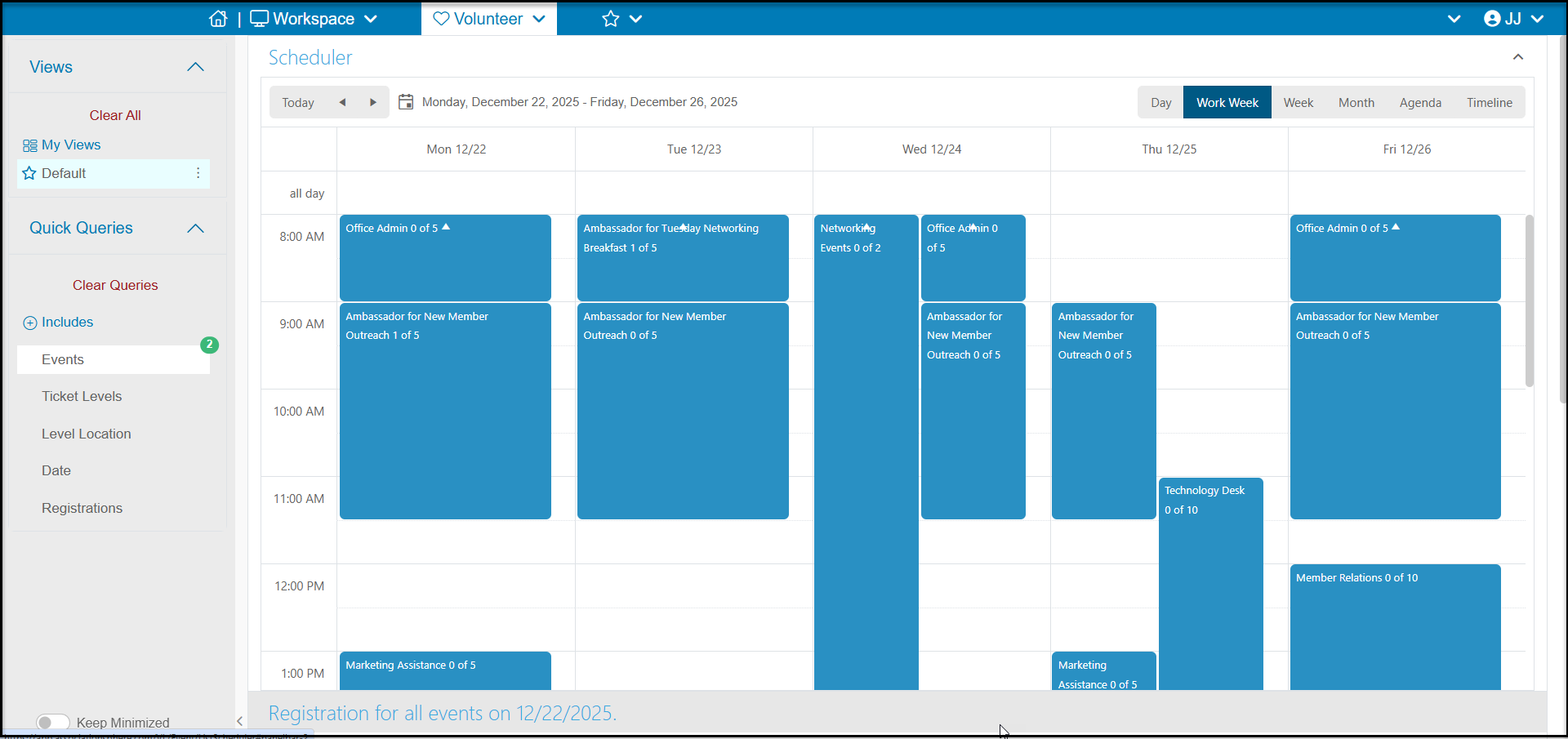
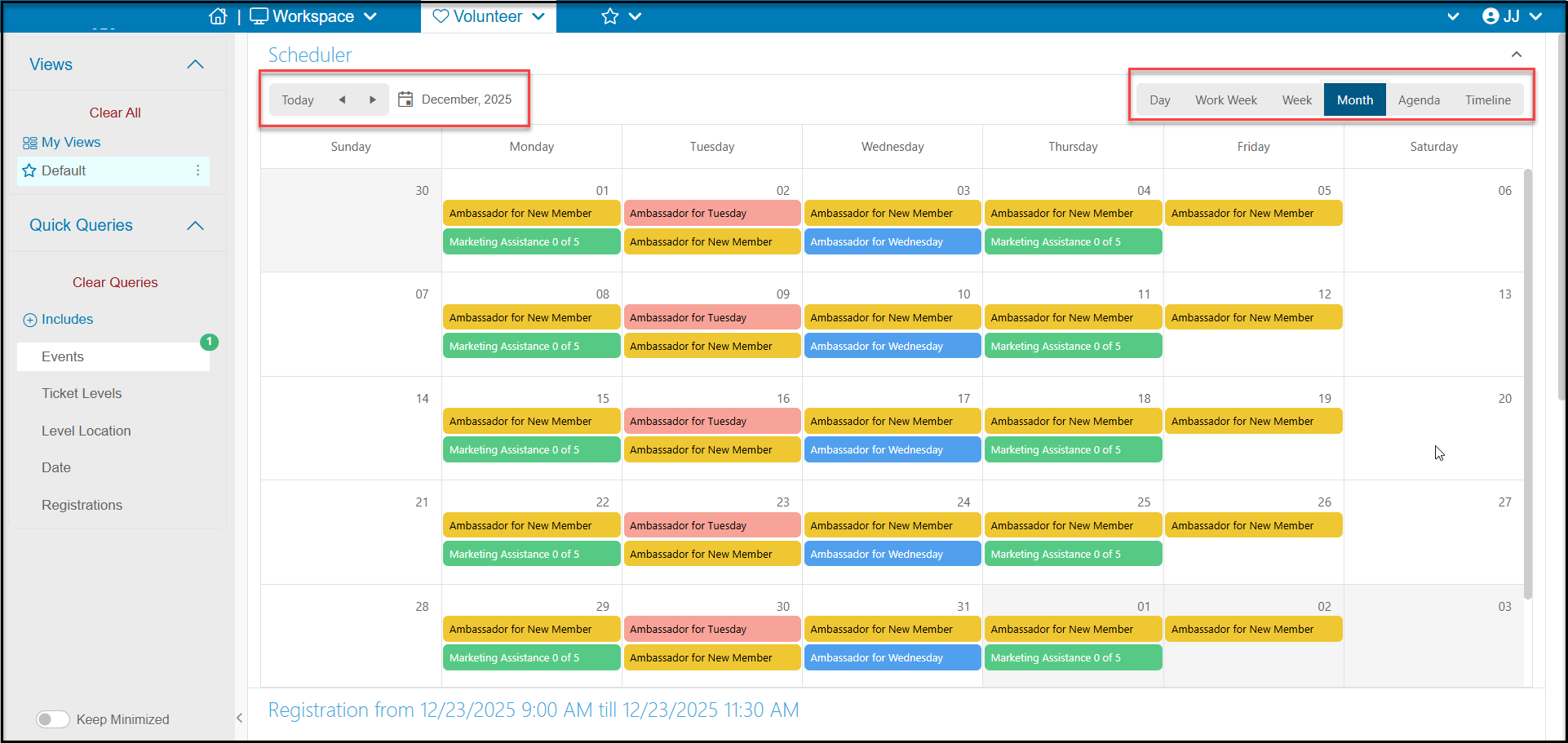
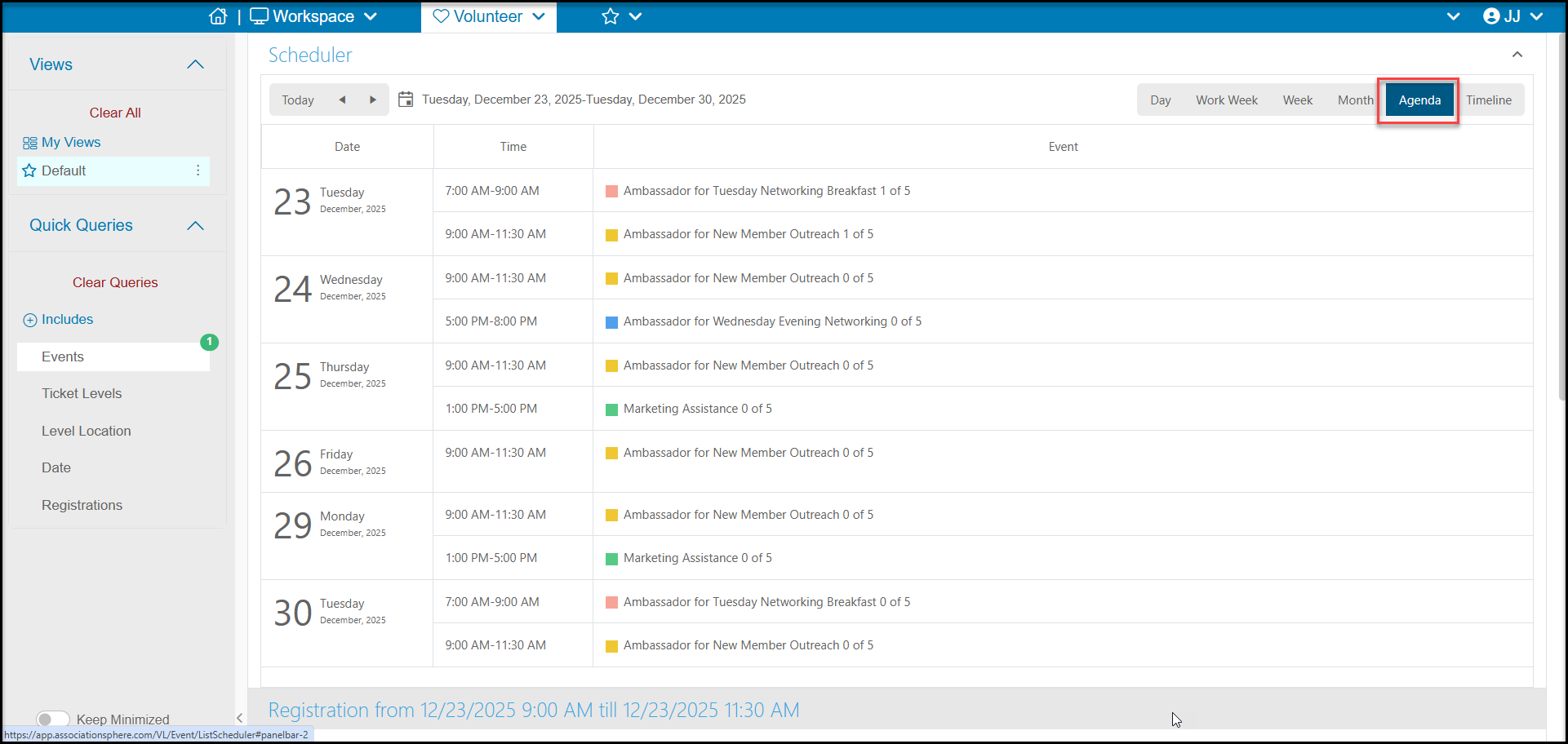
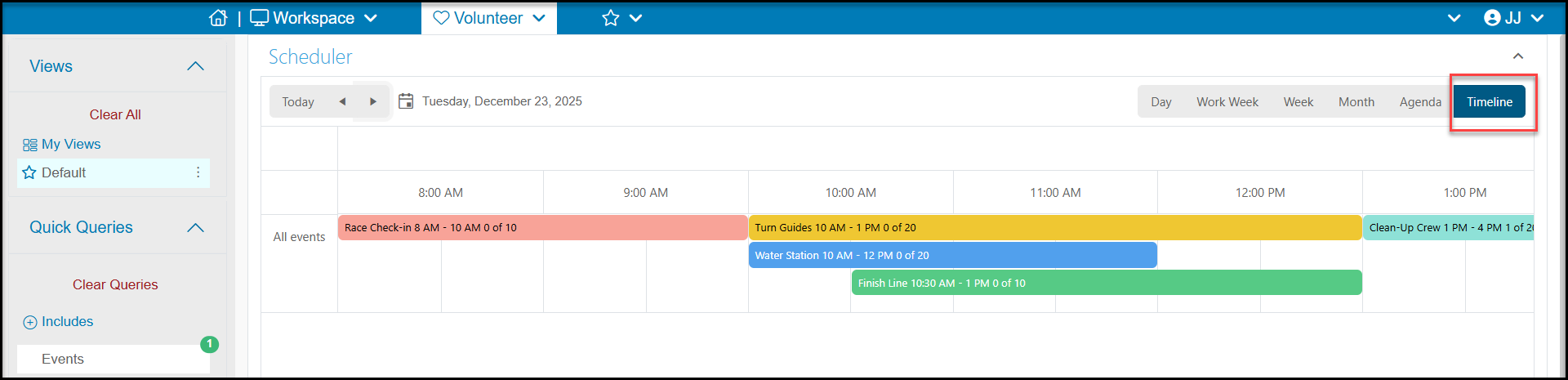
- Across the top of the grid you have the options of changing the date or date range that is showing as well as choosing the view as:
- Day - view activities for a single day
- Work Week - view activities just for Monday through Friday
- Week - view activities for Sunday to Saturday
- Month - view all activities in the month selected
- Agenda - shows activities for the next 7 days organized like an agenda
- Timeline - shows activities stacked on a single day so you can see overlapping activities and those that are predecessors.
- Selecting a new view will refresh the page and update the colors for the activities to more easily see the various activities.
- Below the calendar is a grid to show who is registered for a particular shift/activity. Double click on the shift/activity to populate the grid.
- You have the option to click on Show registrations for selected event to see all the registrations for the entire duration of the event and all the activities.
- Clicking on Show all registrations for the day will show all registrations for the particular day you have already selected by clicking on an activity. If you want to see another day, you will need to click on an activity on the other day to refresh the grid.
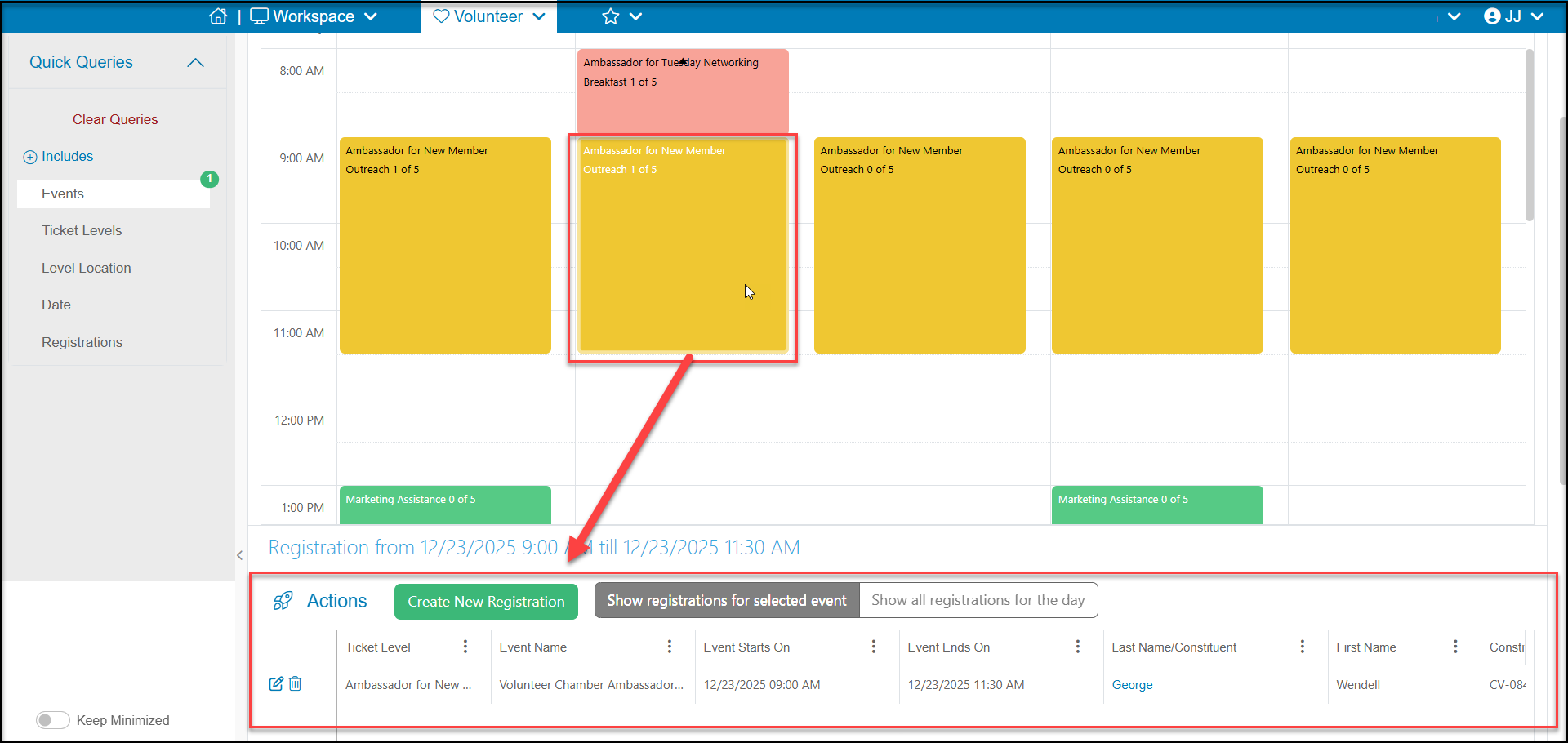
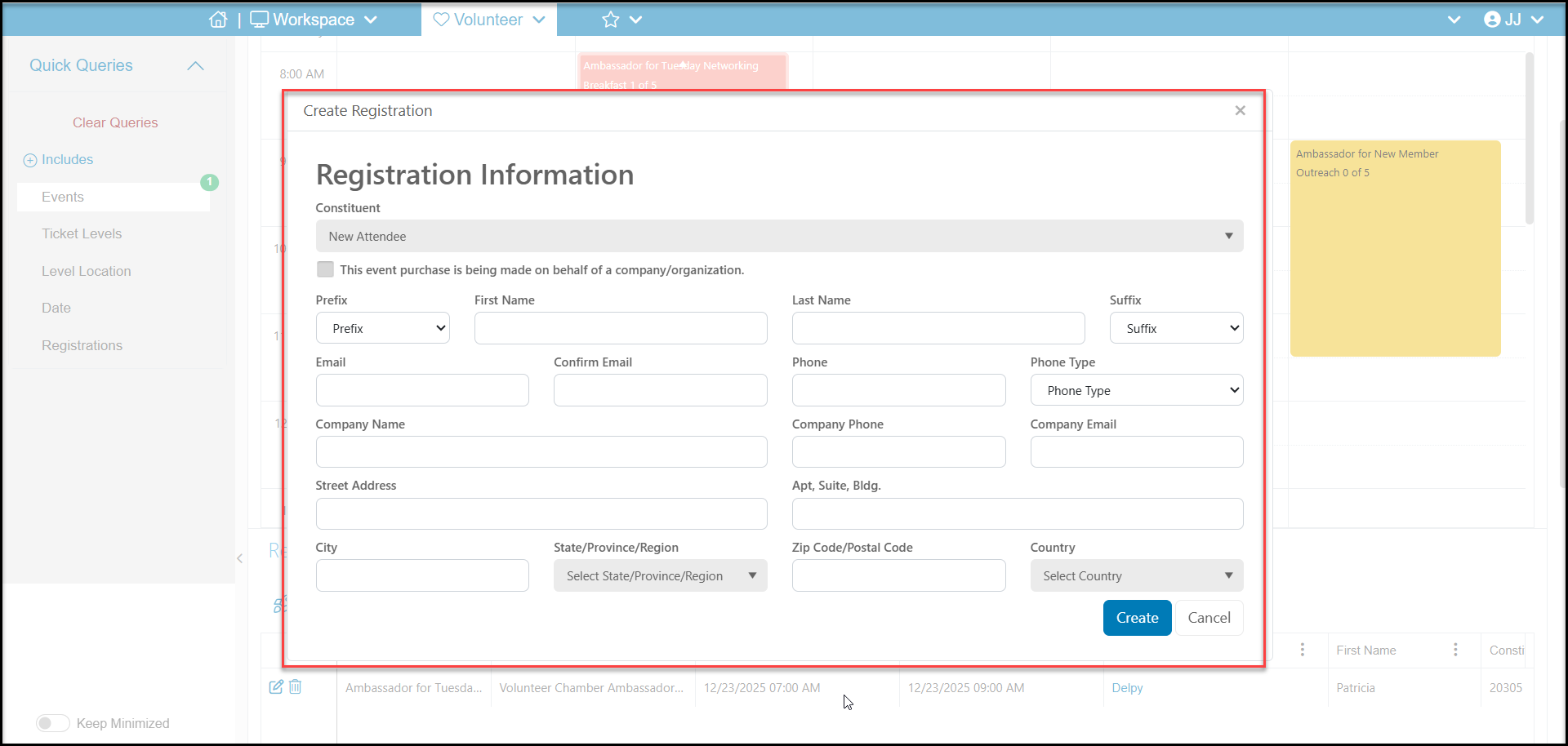
- Once you have selected an activity on a specific day, clicking on Create New Registration at the top of the grid will open a new window to record a new registration for that ticket level/shift.
- You can only create one registration at a time for one activity.
- The window will allow you to create a brand new constituent by leaving the selection “New Attendee” under the Constituent dropdown OR you can select an existing constituent by placing your cursor in that field and typing the first few letters of their names to search for matches.
- Registrations via this method must include an email address, so if your constituent does not have an email address you will need to add one or you could use the Event Page to record the registration since internal event page registrations don't require an email address.
- Click Create to add a new registration. The Volunteer Registrations grid, Attendance grid, and the Scheduler will all immediately update with the new information.
- The registration is internal only, so no confirmation is sent to the volunteer.
- The Scheduler does not offer a View Builder feature, however you can save and share views.
- The Quick Queries menu also allows you to update your view by not only selecting which event to view but also:
- Ticket Levels - the activities for a specific event
- Level Location - if the ticket level is assigned to a specific location, you can search by the specific location
- Date - Enter a date range to view registration information for just that date range
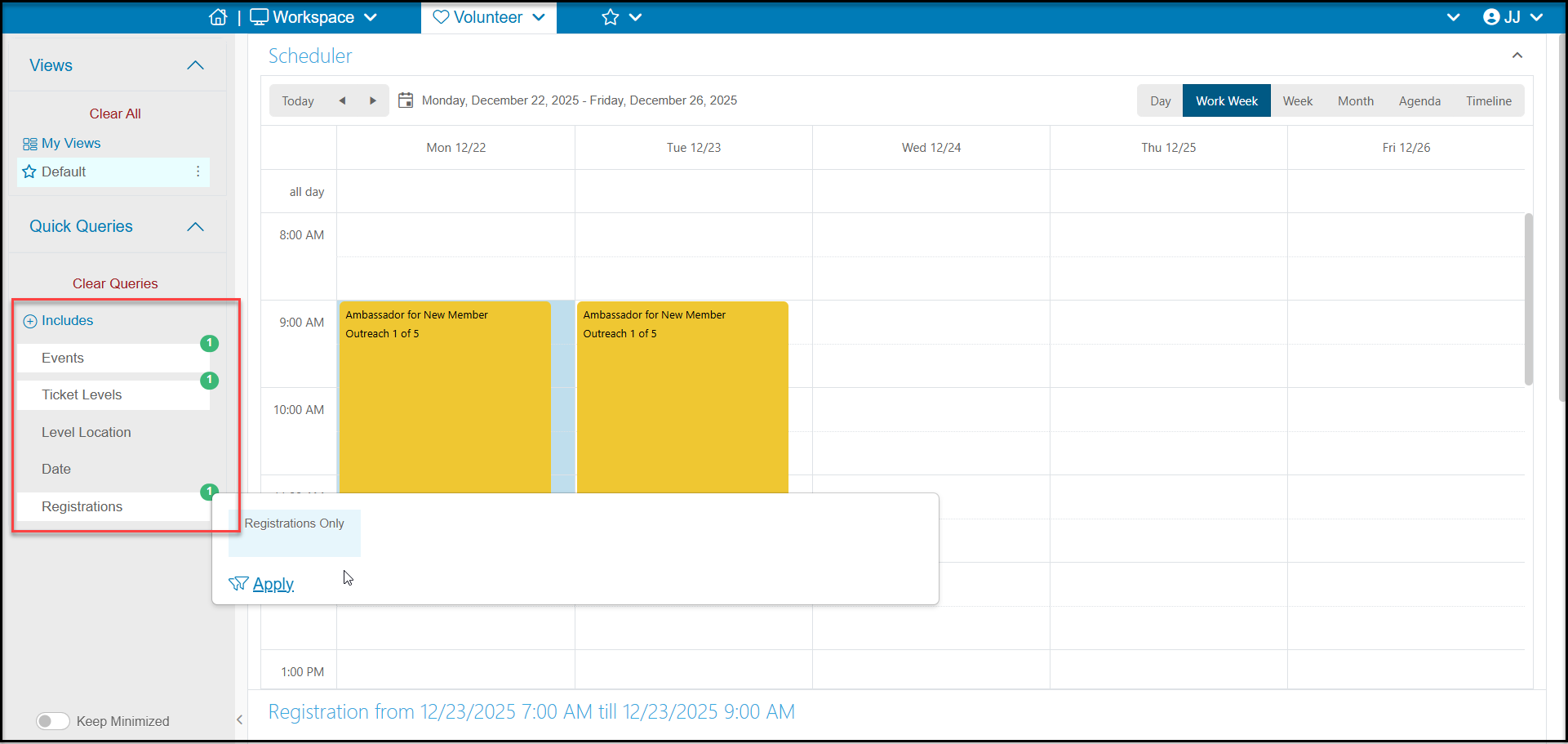
- Registrations - selecting Registrations Only and clicking Apply will only show activities which have registrations recorded. Any shifts/activities with no registrations will be removed from the view.