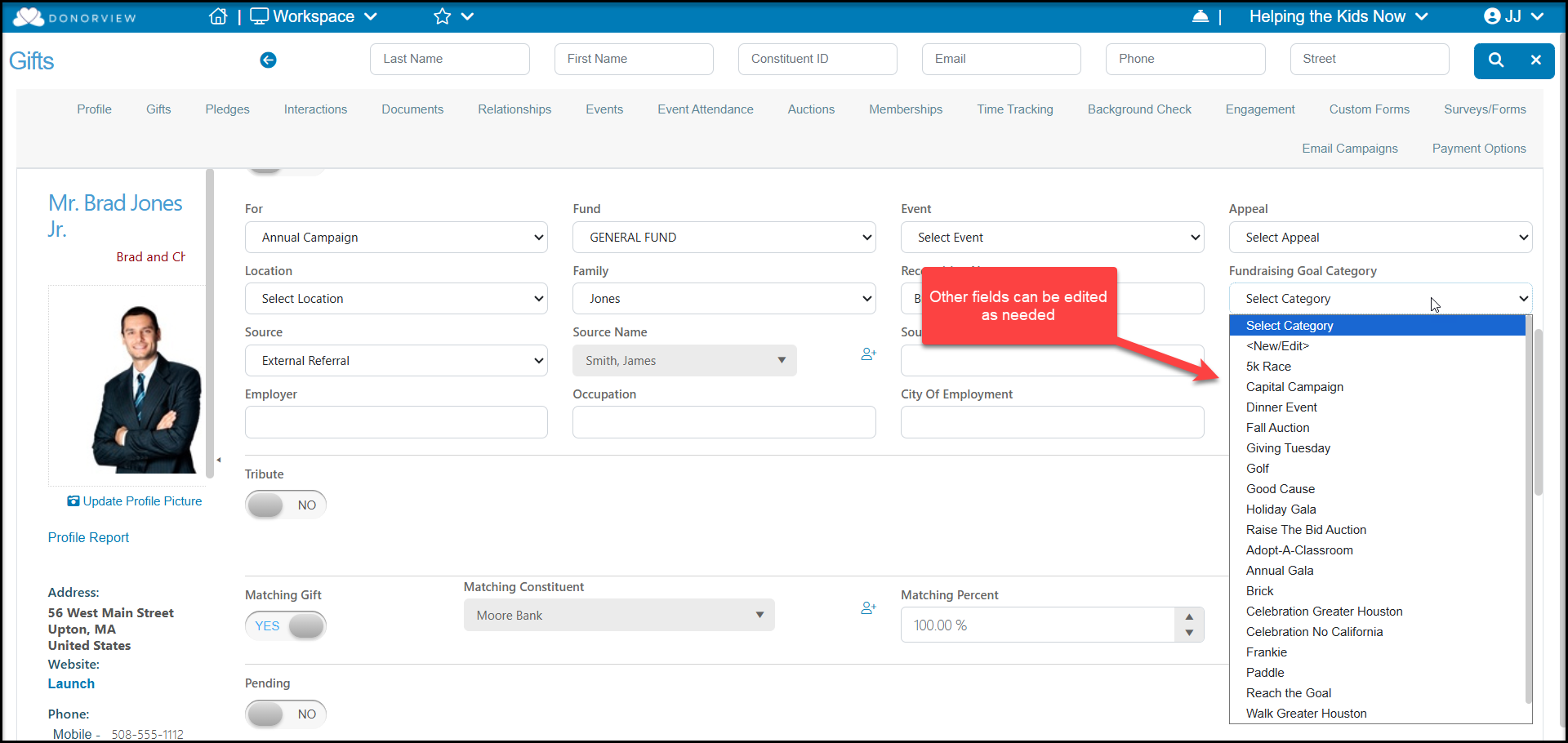
You can edit the gift from the Gifts grid in the Fundraising module or from the Gifts tab in the constituent's record by clicking on the dollar amount under the Amount column. You can also select the row of the gift in the Gifts grid, and use the View/Edit pull down menu and select Gifts.

The screen for the gift will open and you can make changes to any field except the gift type, which cannot be edited. You can cancel the edit by clicking on the Cancel button on the top right. For an explanation of the different fields available on this page, see this article "How do I enter a donation or general gift?" Once the changes are made, click on the green Save buttons at the top or bottom of the screen to finalize the edit.
If the wrong Type was assigned, the record would need to be re-entered to correct it. Be sure to screen print or jot down applicable information like Date, Amount, Txn ID (to refer back to a credit card payment), Payment Type, revenue categories, and other details before deleting a record. Deleted information is not recoverable.
If you are re-entering a transaction that was originally paid with a credit card - be sure to make a note in the Memo field for your finance team explaining that the original transaction was deleted and refer to the original Txn ID for to link the new record to the credit card billing statement.